
Configure Revenue Engine AI: System & Preferences Guide
Inaccurate data and manual reporting cycles can cripple a sales organisation’s ability to forecast effectively. Revenue Engine AI solves this by providing a plug-and-play analytics layer for SuiteCRM that transforms raw data into actionable intelligence. Properly configuring system preferences ensures that every KPI — from pipeline coverage to the Performance Index — reflects the unique operational realities of your sales team.
These configurations create a single source of truth, reducing time spent on manual exports and allowing leadership to focus on high-value coaching and deal execution.
Setting the Quarterly Revenue Target
The Quarterly Revenue Target is the foundational metric for Revenue Engine AI. It serves as the benchmark for calculating the forecast gap, pipeline coverage ratio, and attainment percentages displayed across all 13 dashboard views.
How to Configure
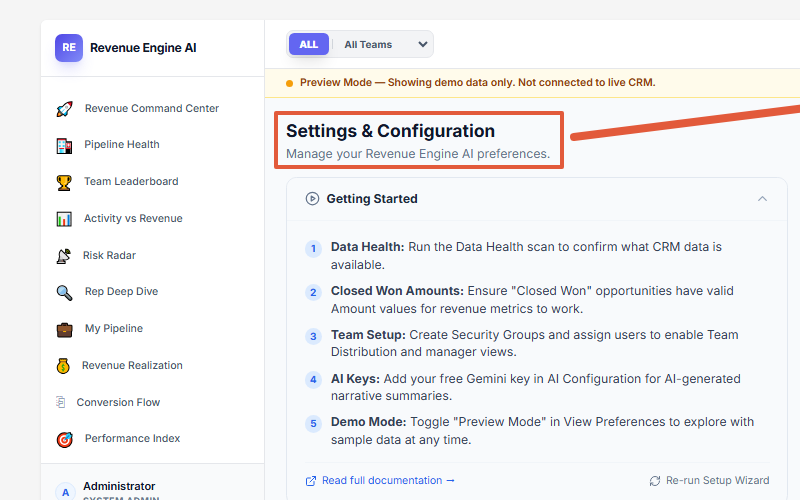
- Navigate to Settings by clicking the gear icon in the sidebar.
- Open the System Configuration accordion.
- Locate the Quarterly Revenue Target field.
- Enter the numerical value for the current quarter in your configured currency units.
- Click Save Changes.
Note on Default: If the target field is left blank, the system defaults to a placeholder value (500 units). This will cause attainment percentages and coverage ratios to be skewed. Set a real target immediately after installation.
Logic & Calculations
- Attainment Percentage: Closed Revenue ÷ Quarterly Target
- Coverage Ratio: Total Open Pipeline ÷ Quarterly Target. A healthy funnel typically requires a 3x–4x coverage ratio.
- Forecast Gap: The absolute difference between the Projected Total (Weighted Pipeline + Closed Revenue) and the established target.
Action Trigger: If the Pipeline Coverage tile in the Revenue Command Center shows Low status (below 2.0x) or Critical status (below 1.0x), immediately initiate pipeline generation efforts.
Team Mapping (Security Groups, Departments, Roles)
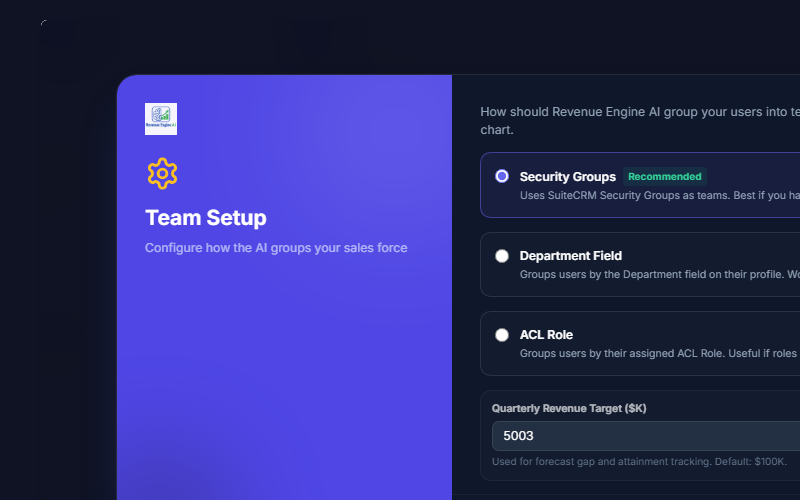
To provide meaningful drill-down capabilities (Company → Team → Rep), Revenue Engine AI must understand how users are organised within SuiteCRM. The Team Mapping configuration dictates how the dashboard groups data for the Team Leaderboard and Team Distribution charts.
Mapping Options
| Mapping Option | Use Case |
|---|---|
| Security Groups (Recommended) | Best if the CRM uses the SecurityGroups module to organise users into specific teams. Provides the most accurate manager-level visibility scoping. |
| Department Field | Ideal for organisations that do not use Security Groups but maintain the Department field on individual User profiles. |
| ACL Role | Useful if user permissions or roles (e.g., “Enterprise Sales” vs “SMB Sales”) are the primary way teams are differentiated. |
Visibility by Role
- Admin Visibility: SuiteCRM Administrators see all reps across all teams regardless of mapping.
- Manager Visibility: Security Group Admins (Managers) are restricted to viewing only the reps within their assigned groups.
- Rep Visibility: Individual reps are restricted to their own data in the My Pipeline view.
Data Source Toggles (Disabling Leads or Activities)
For organisations with large datasets or those that do not use specific SuiteCRM modules, the Data Sources configuration allows exclusion of certain data types. This improves dashboard load speeds and prevents empty or irrelevant metrics from appearing.
Configuration Steps
- Navigate to Settings → Data Sources.
- Toggle the following modules on or off:
- Activity Data (Calls / Meetings / Tasks): Powers last-touch tracking, activity scores, and staleness signals. If your team logs activities in an external tool, toggle this Off to avoid skewed Performance Index scores.
- Leads Module: Powers the Lead Source Attribution panel and the Conversion Flow funnel. Toggle Off if your organisation does not use the Leads module.
Business Impact
- Performance: Disabling unused modules prevents the PHP data bridge from running unnecessary database queries, resulting in faster dashboard load times.
- Accuracy: Disabling Activity Data when activities are tracked externally prevents false “inactivity” flags in the Risk Radar and My Pipeline views.
Toggling Demo Mode for Presentations
Demo Mode allows you to present the dashboard’s capabilities without exposing sensitive production data — or when the current CRM data is insufficient for training sessions.
How to Activate
- Quick Toggle: Click the status indicator at the bottom of the sidebar (labeled Live CRM Data or Demo Mode).
- Settings Toggle: Navigate to Settings → View Preferences and enable Demo Mode.
What Demo Mode Does
- Stable Dataset: Instantly replaces live CRM data with a stable, 18-rep enterprise SaaS dataset featuring realistic pipeline, activity, and realization metrics.
- Visual Indicator: A sticky amber banner appears at the top stating: “Preview Mode — Showing demo data only. Not connected to live CRM.”
- Restoration: Click Restore Live Data → in the amber banner to immediately clear Demo Mode and reload with live SuiteCRM data.
Action Trigger: Use Demo Mode for internal training sessions or when demonstrating the tool to prospective buyers to showcase a fully populated intelligence dashboard without exposing production pipeline data.
Settings Access Tiers (Admin / Manager / Rep)
From v1.6.6, Revenue Engine AI implements a 3-tier Settings access system so that sensitive configuration options are protected from non-admin users:
- Admin Tier: Full access — system configuration, team mapping, AI keys, role permissions panel, license management.
- Manager Tier: Locked — can view settings but cannot change system-wide configuration.
- Basic Tier: Preferences only — can toggle Demo Mode and adjust view preferences.
Administrators can configure which ACL roles map to which settings tier via the Role Permissions Panel in the Admin section of Settings.
Revenue Engine AI v1.7.2 · Built by Zybroz · support@zybroz.com