
Troubleshooting Revenue Engine AI for SuiteCRM Dashboards
Revenue Engine AI is designed to be a plug-and-play solution for SuiteCRM, but technical discrepancies can occasionally arise due to CRM configuration or external API limits. This guide provides a clear roadmap to resolving empty dashboards and missing data, ensuring your sales intelligence remains uninterrupted.
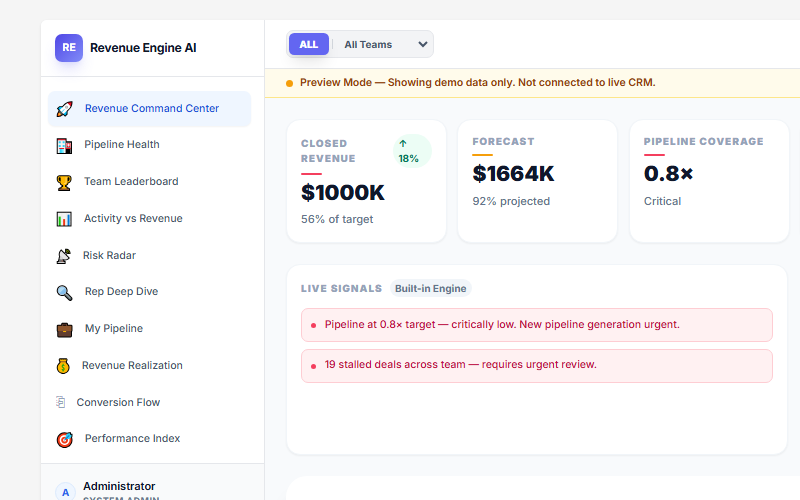
Resolving Empty Dashboards and Missing Data
An empty dashboard is typically not a sign of a failed installation — it is almost always a configuration or data hygiene issue. Because Revenue Engine AI is built on a passive-safe architecture that makes zero changes to your database schema, it relies entirely on the quality of existing records in your SuiteCRM instance.
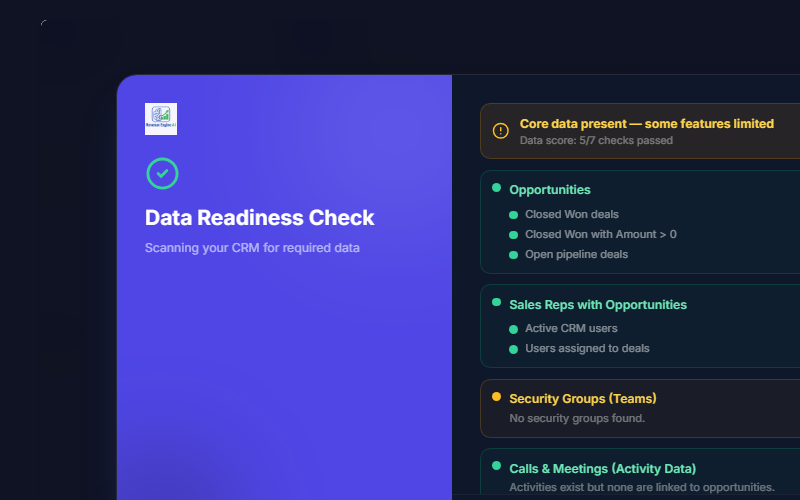
Step 1: Run the Data Readiness Check
Navigate to Settings & Configuration and run the Data Health Scan. This tool checks the CRM for required data points including Opportunities, Sales Rep assignments, and Activity data (Calls/Meetings). Any missing or misconfigured item will be flagged with a warning.
Data Requirements for Each Dashboard Section
- Revenue Metrics (Closed Revenue, Win Rate, Avg Deal Size): Opportunities must be marked as “Closed Won” or “Closed Lost” with an
Amountfield value greater than zero. - Activity Volume & Silence Badges: Calls or Meetings must be logged and linked to specific users and opportunities via the
calls_opportunities/meetings_opportunitiesjoin tables. - Pipeline Coverage & Attainment %: Requires a Quarterly Revenue Target to be entered in Settings → System Configuration. If left blank, the system uses a placeholder default — attainment and coverage percentages will be meaningless until a real target is set.
Action Trigger: Restoration Steps
If the dashboard shows empty charts or incorrect “mock” data, follow these steps in order:
- Check Demo Mode: Navigate to the sidebar footer or Settings → View Preferences. Ensure Demo Mode is toggled Off. If the amber “Preview Mode” banner is visible, click Restore Live Data →.
- Verify File Integrity: Confirm that
custom/include/RevenueEngineAI/DashboardData.phpexists on your server. - Perform a Quick Repair: Log in as Admin and go to Admin → Repair → Quick Repair and Rebuild. This resolves the majority of “blank screen” or broken navigation issues after installation.
- Validate CRM Data Hygiene: Ensure sales reps are filling out the
Amountfield on opportunities and linking calls/meetings to opportunity records. Without this, the dashboard has no raw data to analyse.
Troubleshooting AI API Quota Errors (Code 429)
Revenue Engine AI uses a “Bring Your Own Key” (BYOK) model. While this prevents vendor lock-in, it means the dashboard is subject to the rate limits of your chosen AI provider.
Identifying API Failures
When the AI Insights view fails to generate a brief, open your browser’s developer console (F12 → Console tab). A Code 429 error explicitly indicates that your prompt quota with the provider has been exhausted. A Code 400 error indicates the key is invalid.
Automatic Fallback Logic
Revenue Engine AI automatically retries with the next configured provider if the primary one returns a 429:
- Priority 1: Google Gemini (recommended — generous free tier)
- Priority 2: OpenAI (GPT-4o Mini)
- Priority 3: Anthropic (Claude Haiku)
If you have only configured one provider and it hits its limit, the system will not fall back — configure a secondary key as a safety net.
Remediation Steps
- Gemini Free Tier (429): Quotas reset daily. Wait until the next day or upgrade to a paid Gemini tier for higher limits.
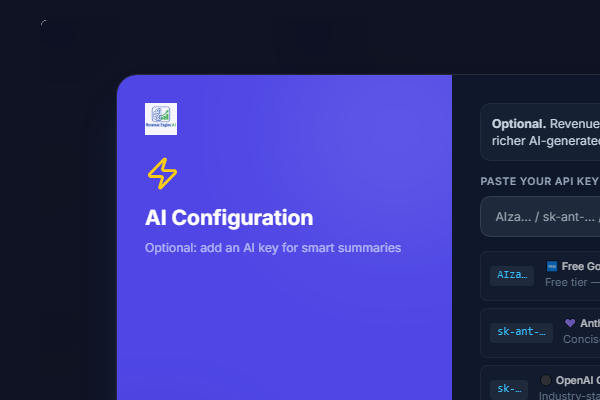
- Invalid Key (400): Navigate to Settings → AI Configuration, paste a fresh valid key, and click Save Changes. No page reload required — the system reads keys fresh from localStorage at generation time.
Fixing Team Visibility Issues
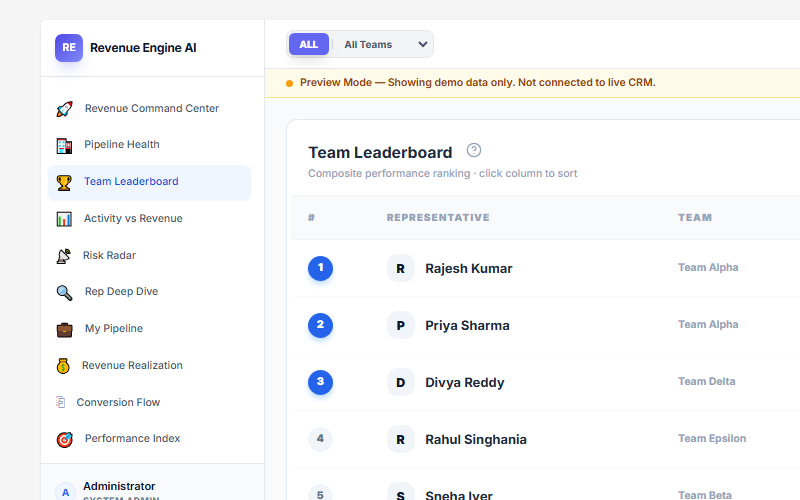
Revenue Engine AI enforces a strict 3-tier server-side security model. If a manager cannot see their team’s data, or a rep sees too much data, the issue lies in the SuiteCRM role mapping.
How to Adjust Team Mapping
Navigate to Settings → Team Mapping and select how the dashboard should group the sales force:
- Security Groups: Recommended default — uses the native SecurityGroups module.
- Department Field: Groups by the Department field on user profiles.
- ACL Role: Groups by assigned ACL Role.
Visibility Tier Enforcement
Filtering happens in PHP at the server level — not in the browser — to prevent data leaks:
| Visibility Issue | Likely Cause | Action |
|---|---|---|
| Manager sees zero reps | is_admin=1 not set in SecurityGroups module |
Set the Manager as Admin in their specific Security Group in SuiteCRM |
| Incorrect team grouping | Mismatched Team Mapping setting | Switch Team Mapping to “Department” or “ACL Role” in Settings |
| Rep sees all org data | User is a System Admin in SuiteCRM | Remove System Admin flag or create a separate non-admin account for the rep |
Data Source Toggles
If specific modules like “Leads” or “Activities” are not appearing for certain teams, check the Data Sources accordion in Settings. Ensure the toggles for Activity Data and Leads Module are enabled. Disabling these toggles causes the PHP bridge to skip those queries entirely, leading to missing metrics in the Conversion Flow and Activity vs Revenue views.
Quick Diagnostic Checklist
- ☐ Demo Mode is Off
- ☐
DashboardData.phpexists atcustom/include/RevenueEngineAI/ - ☐ Quick Repair & Rebuild has been run post-installation
- ☐ Opportunities have
Amountvalues and “Closed Won”/”Closed Lost” statuses - ☐ Calls/Meetings are linked to Opportunity records
- ☐ Quarterly Revenue Target is set in Settings → System Configuration
- ☐ Team Mapping matches your SuiteCRM org structure
- ☐ Manager has
is_admin=1in their SecurityGroup (if using Security Groups mapping)
Revenue Engine AI v1.7.2 · Built by Zybroz · support@zybroz.com