
Revenue Engine AI — How to Install, Configure & Use
A practical guide for sales managers, admins, and sales reps.
Installation (5 Minutes)
Step 1 — Download the Package
Download the latest Revenue Engine AI package (v1.7.2) from the Zybroz website or from the SuiteCRM Marketplace listing.
Step 2 — Upload via Module Loader
- Log into SuiteCRM as an Administrator
- Go to Admin → Module Loader
- Click Choose File, select the
RevenueEngineAIZIP package - Click Upload
- Click Install
The post-install hook automatically runs Quick Repair. No manual Repair & Rebuild is needed.
Step 3 — Access the Dashboard
After installation, open the dashboard from any of these entry points:
| Entry Point | How to Access |
|---|---|
| Profile Menu | Click your name/avatar in the top-right corner → Revenue Engine AI |
| Admin Panel | Admin → Revenue Engine AI section → Open Dashboard |
| Home Dashlet | Home page → Add Dashlet → Revenue Engine AI |
| Direct URL | http://your-crm-url/index.php?entryPoint=RevenueEngineAI |
Note: The SuiteCRM top navigation bar does not have a direct link. This is intentional — adding Revenue Engine AI to the top nav requires
$moduleListregistration which can cause instability. Use the Profile Menu link instead.
First-Time Setup — 6-Step Onboarding Wizard
When you open Revenue Engine AI for the first time, a guided onboarding wizard walks you through setup. The wizard covers six steps:
Step 1 — Welcome
An introduction to what Revenue Engine AI does and what you will configure. Click Get Started.
Step 2 — How It Works
A brief overview of the dashboard’s data sources — Opportunities, Activities, Quotes, Users, and Security Groups. All data access is read-only; Revenue Engine AI never writes to or modifies your SuiteCRM database.
Step 3 — Team Setup
Select how Revenue Engine AI should group your sales reps into teams:
- Security Groups (recommended default) — uses the native SuiteCRM SecurityGroups module
- Department Field — uses the Department field on user profiles
- ACL Role — uses assigned ACL Roles to differentiate teams
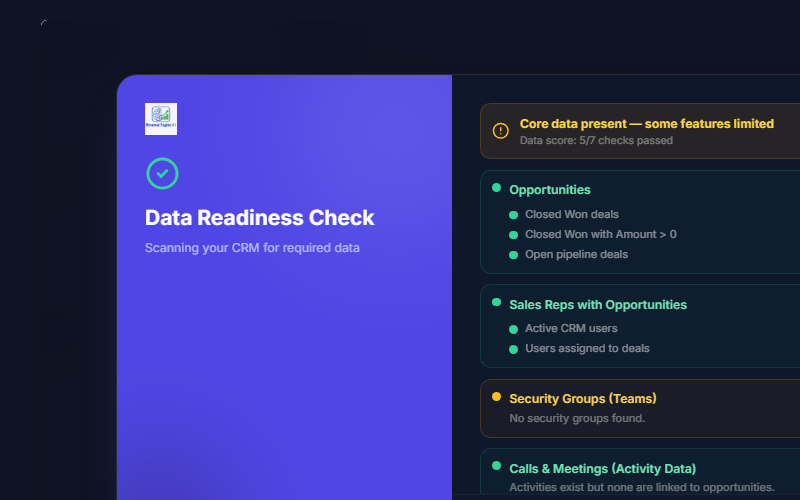
Step 4 — Data Readiness Check
The wizard scans your CRM to confirm that required data is present: Opportunities with Amount values, user assignments, and linked Activity records. A green checkmark confirms each data source is ready. Yellow warnings indicate optional modules that are missing (such as Security Groups or Leads).
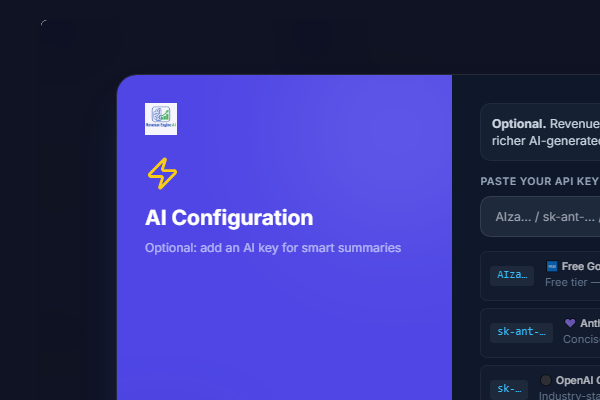
Step 5 — AI Key Setup
Enter an AI provider key to enable AI Insights. Revenue Engine AI uses a single smart key input — paste your key and the system auto-detects the provider:
- Google Gemini (Recommended — Free): Key starts with
AIza.... Get yours at aistudio.google.com → Get API Key → Create API Key. - OpenAI (Optional): Key starts with
sk-.... Get yours at platform.openai.com/api-keys. - Anthropic Claude (Optional): Key starts with
sk-ant-.... Get yours at console.anthropic.com.
You only need one key. Gemini is recommended because it is free under AI Studio quotas. The system automatically falls back to OpenAI, then Anthropic, if the primary provider hits a quota limit.
Step 6 — Ready to Launch
Click Launch Dashboard to enter the main interface. The wizard will not appear again on this device — it is marked complete in your browser’s local storage.
Configuration
Setting Your Quarterly Revenue Target
The quarterly target drives the forecast gap display, pipeline coverage ratio, and attainment percentage across all views.
- Click Settings in the sidebar (gear icon)
- Open the System Configuration accordion
- Enter your quarterly target in the Quarterly Revenue Target field
- Click Save Changes
The target is saved and used as a parameter with every data request. The default is 500 units if not set — configure this first to ensure accurate pipeline coverage and attainment calculations.
Team Mapping
In Settings → Team Mapping, confirm how reps are grouped into teams:
| Option | When to Use |
|---|---|
| Security Groups (default) | Your CRM uses the SecurityGroups module to organise users |
| Department | You use the Department field on user profiles |
| ACL Role | You use ACL Roles to differentiate teams |
Demo Mode
Toggle in Settings → View Preferences → Demo Mode to switch between live CRM data and a stable 18-rep Indian SaaS demo dataset.
- On: Dashboard shows demo data. An amber “Preview Mode” banner appears at the top.
- Off: Dashboard queries your live SuiteCRM database.
Use Demo Mode for prospect demos, training sessions, and testing without affecting production data.
Using the Dashboard
Navigating Views
The left sidebar lists all 13 views. Click any view to switch. The sidebar can be collapsed to icon-only mode by clicking the arrow — useful on smaller screens.
Date Range Filter
The date range picker appears at the top of every view. Choose from:
- Preset ranges: This Month, This Quarter, Last Quarter, Rolling 90 Days, and more
- Custom range: Select “Custom Range…” then pick your from and to dates. Click Apply Range.
Your selected range persists across page reloads and browser sessions.
Dark Mode
Click the moon/sun toggle in the dashboard header to switch between light and dark themes. Your preference is saved automatically to local storage.
View-by-View Quick Reference
Revenue Command Center
What to look at first: The 6 KPI tiles at the top — Closed Revenue, Forecast, Pipeline Coverage, Win Rate, Avg Deal Size, and Avg Sales Cycle. Check pipeline vs quarterly target and review the AI Insights summary. Action trigger: If stalled deals exceed 10% of pipeline count, open Risk Radar.
Pipeline Health
Review stage distribution bars and the overdue deal list. Check the coverage ratio — you need at least 3x pipeline coverage to comfortably hit target. Action trigger: Coverage ratio < 2x → escalate pipeline generation. Overdue list > 5 deals → assign follow-up actions in 1:1s.
Team Leaderboard
Sort by Revenue for the headline ranking. Switch to Performance Index for a fairer multi-factor ranking. Click any rep to open their Deep Dive. Action trigger: Bottom 3 reps by Performance Index → schedule coaching 1:1.
Activity vs Revenue
Each dot is a rep. Top-right = star performers (high activity, high revenue). Bottom-left = at-risk (low activity, low revenue). Action trigger: Any rep in bottom-left for two consecutive months → performance improvement plan.
Risk Radar
Review stalled deal flags (14+ days no stage change) and inactivity flags (no calls/meetings in 7+ days). Click a rep’s name to jump to their Deep Dive. Use as your pre-1:1 preparation checklist.
Rep Deep Dive
Select a rep from the team switcher. Review their pipeline, activity count, win rate, and Performance Index. Use this as the basis for every coaching conversation.
My Pipeline (Reps)
Red = overdue (call today). Amber = closing this week (prep now). Yellow = closing next week (review). The Next Best Action suggestion tells you what to do based on deal stage and last activity.
Revenue Realization
Funnel from Quotes → Orders → Invoices → Cash Collected. A large drop between Invoices and Collected indicates a collections problem. Action trigger: Realization rate < 70% → escalate to Finance.
Conversion Flow
Total leads vs won deals, with per-rep conversion rates. Action trigger: Rep with < 10% conversion rate for 2+ months → review lead source mix and qualification process.
Performance Index
Composite score: Revenue Attainment 40% + Conversion Rate 30% + Activity Volume 20% − Risk Penalty 10%. Score ranges from 0 to 100.
Account Intelligence
Top 12 accounts by pipeline value. Concentration alert fires if top 3 accounts exceed 50% of total pipeline. Use to identify and reduce over-reliance on key accounts.
Forecast Accuracy Tracker
Save dated snapshots of your forecast to build a historical audit trail. Compare snapshots to track deal slippage or improved momentum over time.
Data Audit & Diagnostics
Admin-only view. Compares DB records against dashboard metrics to identify data hygiene issues. Run this if views show unexpected empty states.
Exporting Reports
The export toolbar appears at the top of every view. Three formats available:
- PNG Export — High-resolution screenshot (2x DPI). Use for Slack messages, email attachments, quick sharing.
- PDF Export — A4 landscape format. Use for board packs, investor meetings, quarterly business reviews.
- CSV Export — Available for Team Leaderboard (all reps, all pages) and Pipeline Health (all deals). Use for offline analysis.
- Email — Opens your email client with a pre-formatted subject line. Attach exported PDF or PNG manually.
Permissions & Data Visibility
Revenue Engine AI enforces role-based data access at the PHP server level — not in the browser:
| User Type | What They See |
|---|---|
| SuiteCRM Admin | All reps across all teams |
| Security Group Admin (Manager) | Only reps in their security group |
| Regular Rep | Only their own data |
A rep cannot manipulate the URL or browser state to see another rep’s data — the server simply will not provide it.
Troubleshooting
Dashboard shows demo data instead of my CRM data
- Check Settings → View Preferences → Demo Mode is Off
- Run Admin → Repair → Quick Repair & Rebuild
- Confirm
custom/include/RevenueEngineAI/DashboardData.phpexists on your server
AI Insights button does nothing
- Confirm an AI key is saved in Settings → AI Configuration
- Check browser console for API errors (429 = quota exceeded, 400 = invalid key)
- Gemini free-tier quota resets daily — try again the next day if quota is hit
Date range not filtering data
- Ensure your SuiteCRM opportunities have a
close_datewithin the selected range - For custom date ranges, confirm you clicked Apply Range
Cannot see other reps’ data as a manager
- Confirm you are assigned as
is_admin=1in the SecurityGroups module for your group - Or switch Team Mapping to Department or Role in Settings
Revenue Engine AI v1.7.2 · Built by Zybroz · support@zybroz.com