If your sales reps are missing calls, letting deals go stale, or dropping activities without warning, you already know the problem – you just lack the early signal. TeamPulse for SuiteCRM is a behavioral analytics extension that surfaces those signals before a pipeline collapses. Installing it takes under five minutes once you know the exact sequence. This guide walks you through every step to install TeamPulse in SuiteCRM and reach a working dashboard.
Before You Begin: System Requirements
TeamPulse requires SuiteCRM 7.10 or later (SuiteCRM 8.x is fully supported), PHP 8.1 or higher, and MySQL 5.7 or higher. Confirm your environment meets these requirements in Admin → Diagnostic Tool before uploading. You also need administrator access to the SuiteCRM admin panel – standard user accounts cannot run Module Loader or Quick Repair and Rebuild.
Step 1 – Download the Correct ZIP from the SuiteCRM Store
TeamPulse is sold in three billing plans, and each plan ships as a separate ZIP file:
- Monthly – billed month-to-month; ZIP labeled with the monthly plan identifier
- Yearly – annual subscription; ZIP labeled with the yearly plan identifier
- One-time – perpetual license; ZIP labeled with the one-time plan identifier
This distinction matters beyond branding. Each ZIP validates only against its own license key. If you purchase a Yearly license and upload the Monthly ZIP, license activation will fail. Log in to the SuiteCRM Store, open your order, and download the ZIP that matches your purchased plan.
Save the ZIP locally – do not extract it. Module Loader accepts the compressed archive directly.
Step 2 – Upload and Install via Module Loader
Log in to SuiteCRM as an administrator and open Admin → Module Loader. Use the upload form to select the TeamPulse ZIP you just downloaded. SuiteCRM will validate the package and display a confirmation row in the upload queue.
Click Install next to the TeamPulse entry. The installer runs through the following automatically:
- Creates seven custom database tables:
teampulse_config,teampulse_cache,teampulse_ai_queue,teampulse_journal,teampulse_actions,teampulse_schedules, andteampulse_schedule_log - Registers the “TeamPulse – AI Summary & Cache Refresh” scheduled job, which runs every 30 minutes
- Places the React frontend bundle in the module directory
Installation typically completes within 30 seconds. When Module Loader returns to the upload screen without errors, the install step is done. Do not navigate to TeamPulse yet – one critical step remains.
Step 3 – Run Quick Repair and Rebuild (Mandatory)
This is the step most failed installations skip. SuiteCRM caches its navigation structure, module registry, and language files on disk. Module Loader writes the TeamPulse files, but SuiteCRM will not see the new module in the navigation or respond to its API routes until that cache is regenerated.
Navigate to Admin → Repair → Quick Repair and Rebuild. Scroll to the bottom of the page and click Repair. Wait for the page to reload and display the completion output – this usually takes 10 to 30 seconds depending on server speed.
After QRR completes, SuiteCRM has:
- Registered the TeamPulse module in the module list
- Added TeamPulse to the top navigation under the ALL tab
- Activated the API route at
/index.php?module=TeamPulse&action=api&op=... - Scheduled the background job for pickup by the SuiteCRM cron runner
If you skip this step, the TeamPulse tab will not appear and all API calls will return 404 errors. Quick Repair and Rebuild is not optional.
Step 4 – Complete the 5-Step Setup Wizard
Open TeamPulse for the first time (see Step 5 below for navigation). The onboarding wizard launches automatically on first load. It covers five steps in sequence.
Welcome
The first screen confirms the extension is installed and introduces the five-factor behavioral scoring model. No configuration happens here – this is orientation. Click Next to proceed.
Connect
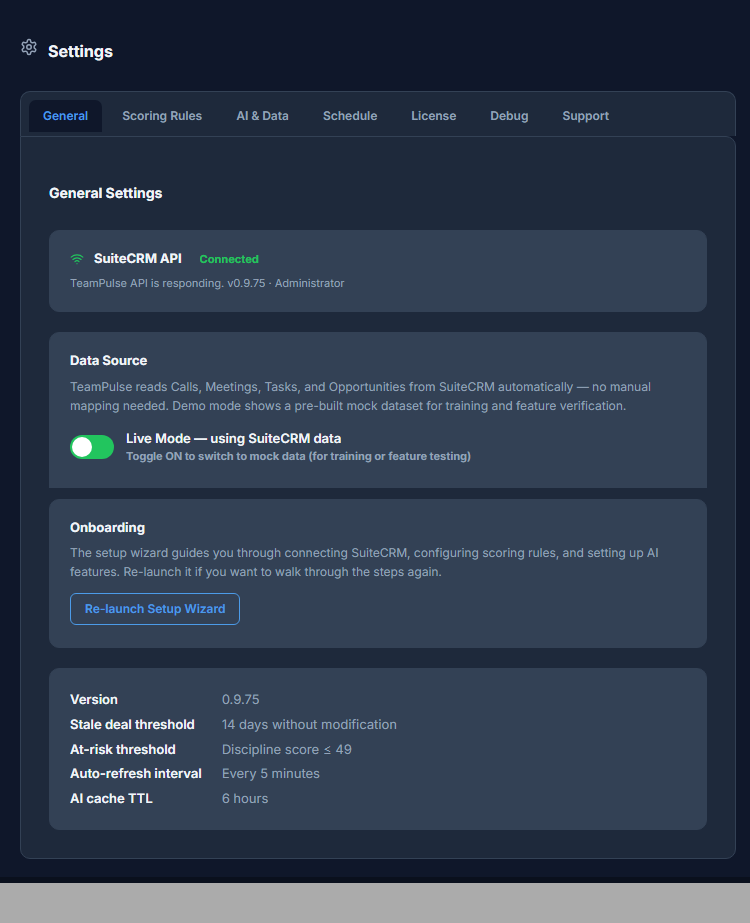
TeamPulse reads activity data from your existing SuiteCRM records: Calls, Meetings, Tasks, and Opportunities. The Connect step confirms that the extension can reach these standard modules. No external credentials are needed at this stage – TeamPulse uses the same SuiteCRM session as your browser.
If the connection check fails, the most common cause is a missing QRR (go back and run it). Confirm SuiteCRM’s internal PHP API is reachable from the admin session before continuing.
Score Weights
TeamPulse scores each rep across five behavioral factors. In v0.9.9, the weights are read-only and displayed here for reference. You can review how the model distributes scoring emphasis, but slider adjustments are planned for v1.0. Click Next to continue without changes.
AI Setup
TeamPulse supports BYOK (Bring Your Own Key) AI summaries via OpenAI, Azure OpenAI, or a local Ollama endpoint. The wizard asks for your API key and endpoint. If you are not ready to configure AI yet, you can skip this step and return to it via Settings. AI summaries are generated asynchronously by the background scheduler and do not block the core scoring engine.
Done
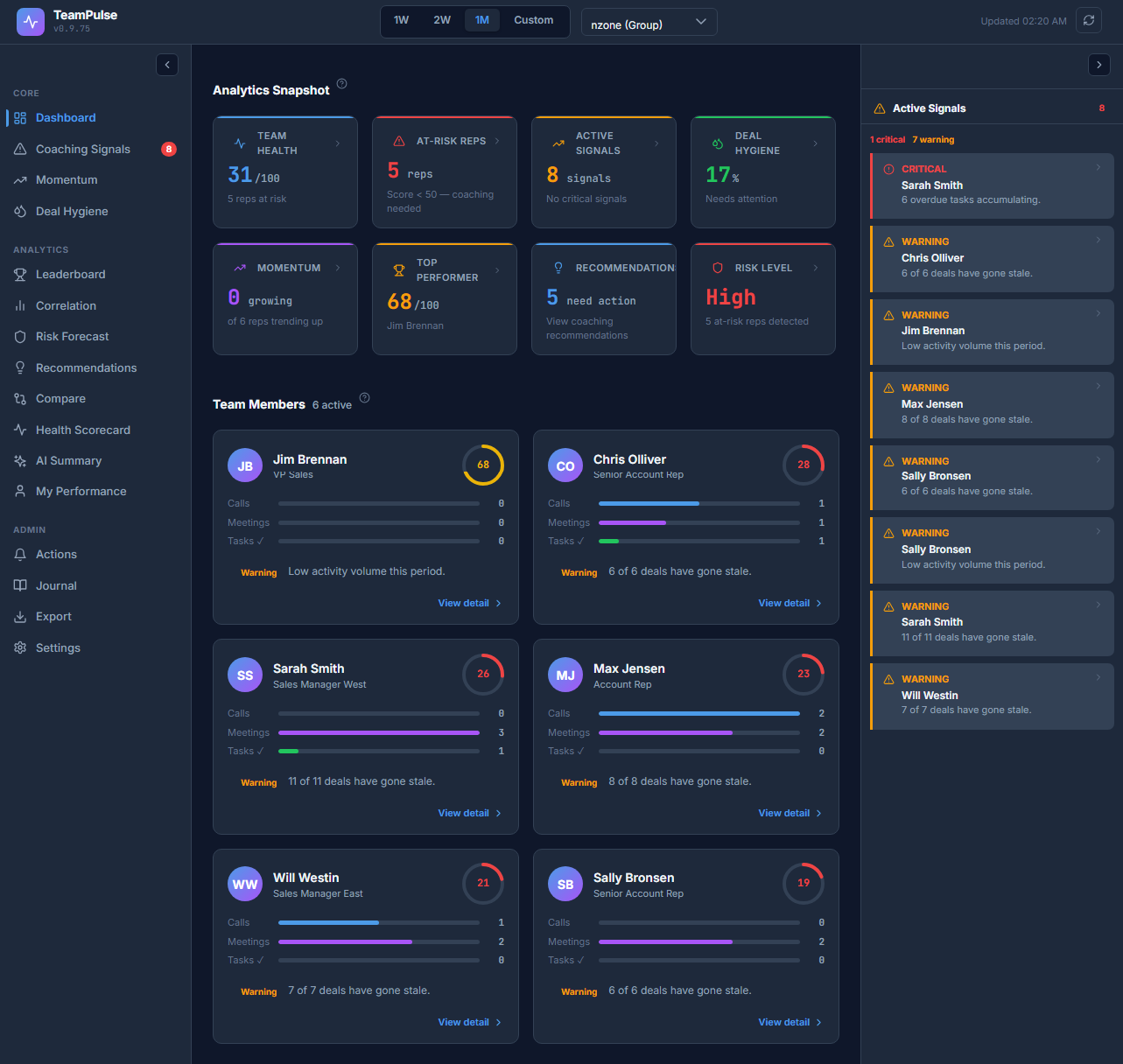
The final wizard screen confirms setup is complete. TeamPulse will load in Demo Mode by default, showing 25 fictional sales reps across three mock teams (Midmarket, Enterprise, and SMB). This allows you to explore every view and feature without touching live CRM data.
Step 5 – Accessing TeamPulse in SuiteCRM Navigation
After setup, you can reach TeamPulse through two paths:
- Top navigation bar → click ALL to expand the full module list → select TeamPulse
- Profile icon (top-right of the SuiteCRM header) → dropdown includes a direct TeamPulse link
Both routes load the same single-page React application. Bookmark the direct URL after your first visit for faster access.
Troubleshooting Common Installation Issues
TeamPulse Tab Does Not Appear in Navigation
The cause is almost always a skipped or incomplete Quick Repair and Rebuild. Return to Admin → Repair → Quick Repair and Rebuild and run it again. After it completes, do a hard refresh in your browser (Ctrl+Shift+R) to clear the browser-side navigation cache. If the tab still does not appear, go to Admin → Display Modules and Subpanels and confirm TeamPulse is set to visible.
API Unreachable Error on First Load
This means SuiteCRM has not yet registered the TeamPulse API routes. Run Quick Repair and Rebuild. If the error persists, confirm that your SuiteCRM .htaccess or Nginx rewrite rules are not blocking custom module routes.
Module Loader Rejects the ZIP
Check that the ZIP is not corrupted by re-downloading it from the SuiteCRM Store. Confirm the ZIP matches your plan (Monthly, Yearly, or One-time). SuiteCRM Module Loader also has an upload size limit – verify your PHP upload_max_filesize and post_max_size settings allow the TeamPulse package size.
Scheduler Not Running
The “TeamPulse – AI Summary & Cache Refresh” job requires SuiteCRM’s cron runner to be active. Confirm you have a server cron job executing php /path/to/suitecrm/cron.php at least every 5 minutes. Without this, AI summaries and cache refreshes will not trigger automatically.
Score Bands at a Glance
| Score Range | Band Label | Interpretation |
|---|---|---|
| 90 – 100 | Exceptional | Rep is performing above expectations across all factors |
| 70 – 89 | Standard / Strong | Healthy performance; monitor for consistency |
| 50 – 69 | Needs Coaching | Activity gaps present; proactive coaching recommended |
| 0 – 49 | Critical / At-Risk | Significant behavioral drop; immediate manager attention needed |
Any rep scoring 49 or below is flagged as At-Risk automatically. The dashboard surfaces these reps at the top of the health scorecard view so managers can act without hunting through individual records.
What Happens After Installation
TeamPulse is fully operational in Demo Mode as soon as the wizard completes. You can navigate every view, explore the scoring engine, and build familiarity with the coaching signals – all against fictional data that cannot affect your live records.
When you are ready to point TeamPulse at your actual Calls, Meetings, Tasks, and Opportunities data, the next step is license activation. A valid license is required to switch from Demo Mode to Live Mode.
Ready to Activate Your License?
Installing TeamPulse is only the first part of the setup. To unlock live behavioral data from your SuiteCRM records, you need to activate your license key and toggle the data source to Live. Read the full guide on TeamPulse license activation and switching from Demo to Live Mode to complete your configuration.