
Your CRM already holds the answer to why your team is missing quota. The activity logs, pipeline ages, follow-up gaps, and login cadences are all there. The question is whether your system can read them and tell you something useful. TeamPulse adds AI sales coaching to SuiteCRM through a dual-layer architecture: a built-in engine that works without any configuration, and a BYOK layer that connects your own AI provider for richer natural language output.
The Dual-Layer Architecture
TeamPulse separates AI capability into two distinct layers that operate independently and additively.
The InsightEngine is always on. It requires no API key, no external account, and no configuration beyond installation. It runs deterministic, rule-based analysis on your SuiteCRM data every time it executes, and its outputs are consistent and auditable – the same input always produces the same output.
The BYOK Generative AI layer sits on top of the InsightEngine. When configured, it takes the InsightEngine’s structured outputs – verdicts, patterns, and rep-level data – and generates natural language narratives, contextual coaching scripts, and team summaries. If you do not configure a BYOK provider, the InsightEngine output is still fully usable. BYOK adds depth, not core functionality.
What InsightEngine Gives You Without Any Configuration
Out of the box, the InsightEngine produces four types of output that are usable immediately after installation.
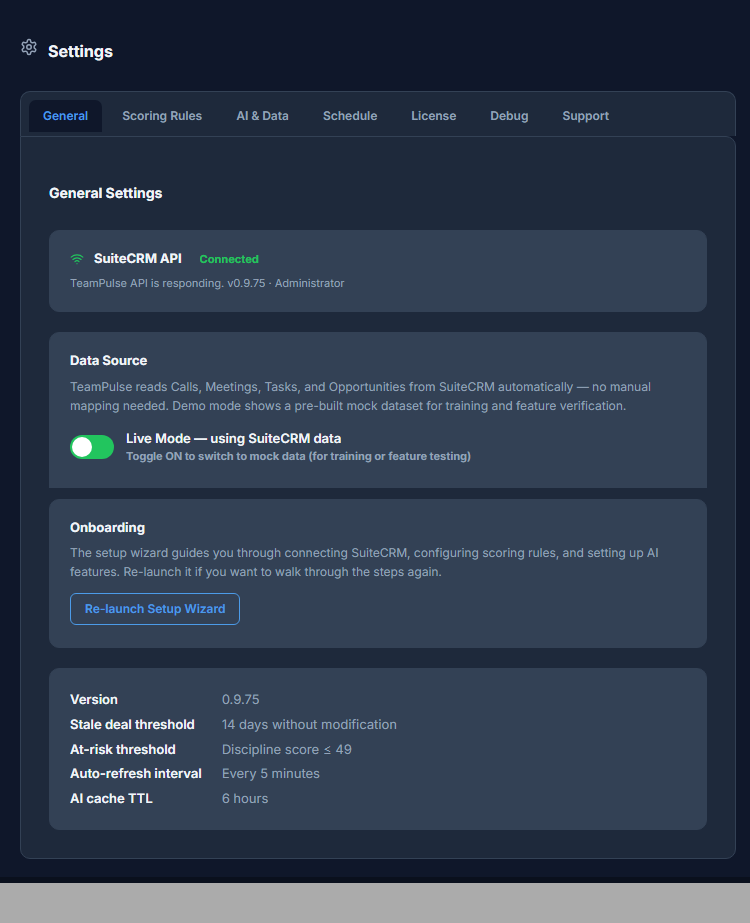
Team Verdict
The getTeamVerdict function evaluates aggregate team metrics and returns one of five health levels: Excellent, Growing, Stable, Declining, or Critical. This verdict appears at the top of the AI summary panel and in the PageInsight accordion on the Coaching Signals view. It gives you a single-word answer to “how is the team doing?” that is grounded in actual score distributions and signal counts – not a subjective assessment.
Behavioral Pattern Detection
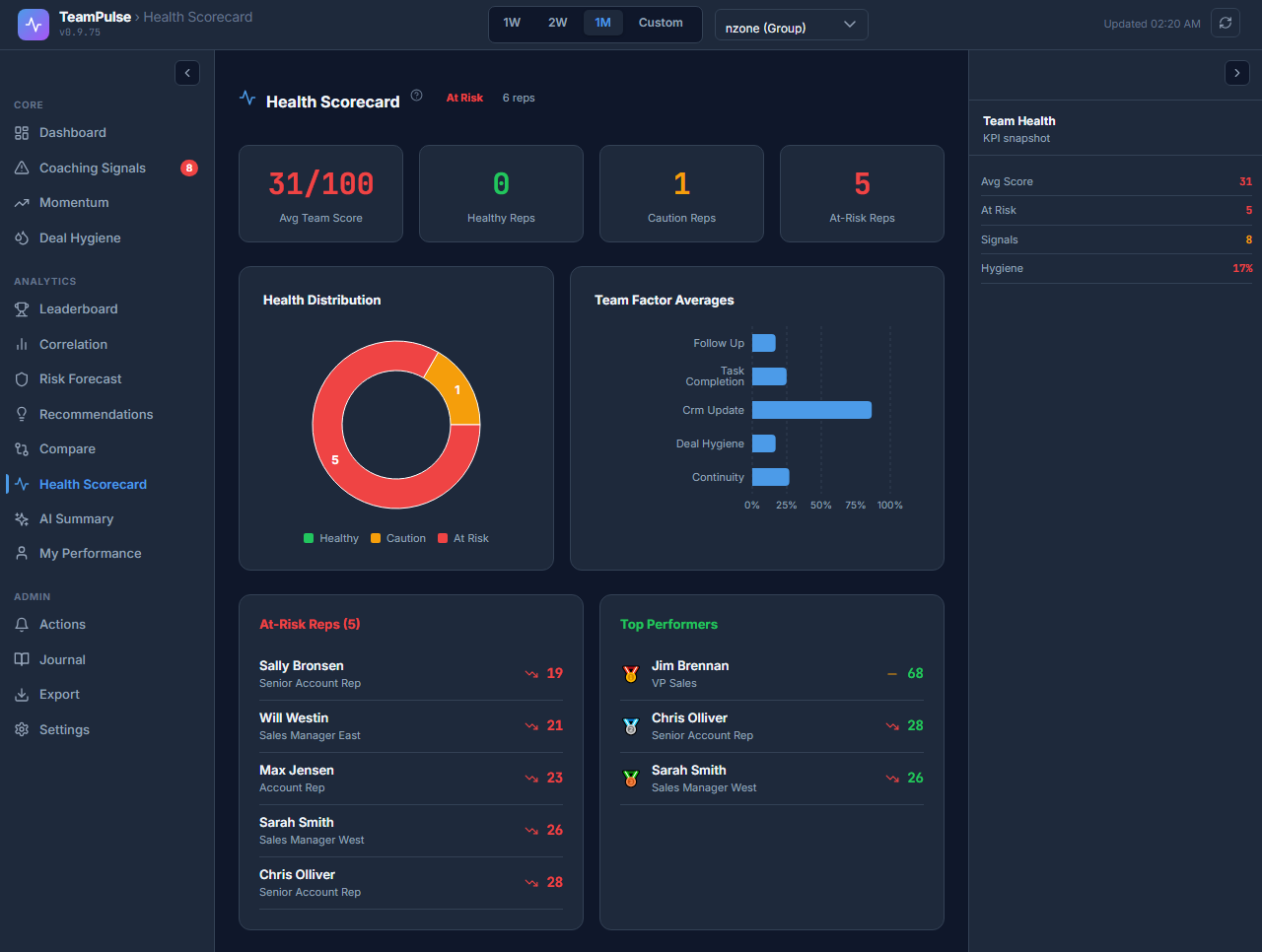
The detectPattern function identifies one of seven named behavioral patterns for each rep:
- Elite Performer – high score, low signal count, consistent activity
- Call Machine – high activity volume relative to conversion rate
- Deal Staller – pipeline exists but deals are not advancing
- Four additional patterns covering engagement consistency, follow-up discipline, and CRM hygiene gaps
Pattern detection does not require AI inference. The InsightEngine derives patterns from threshold comparisons against each rep’s own behavioral data. The output is a label plus a short descriptor – readable in the Health Scorecard view and usable in 1:1 conversations without needing to explain the methodology.
Coaching Briefs for Reps Below 55
When a rep’s composite score falls below 55, the InsightEngine’s getCoachingBrief function generates a three-point coaching plan. The plan is specific to that rep’s active signal profile – it does not pull from a generic template library. A rep with a Stale Pipeline signal and a Follow-up Gap gets different guidance than a rep with a Login Gap and High Effort Low Conversion. Coaching Briefs update every time the engine runs.
Team Summary
The generateSummary function combines the team verdict, individual pattern cards, and active coaching briefs into a structured summary. This summary is the primary output of the AI Summary view, whether or not you have a BYOK provider configured. With no BYOK key, the summary is structured data and labels. With BYOK enabled, the same summary becomes a readable narrative paragraph.
When InsightEngine Is Enough vs. When You Need BYOK
InsightEngine is sufficient for most operational use cases: daily triage, coaching signal review, 1:1 preparation, and weekly team health checks. The outputs are structured, consistent, and act as a reliable second opinion on your team’s behavioral state.
BYOK becomes valuable in two specific scenarios. First, when you want to share AI output with stakeholders who are not in the CRM – a narrative paragraph is easier to include in a weekly email or a leadership summary than a set of labeled pattern cards. Second, when you want coaching scripts that are conversational in tone, not just structured recommendations. A rep scoring 42 with a High Effort Low Conversion signal needs a different conversation than a rep scoring 48 with a Login Gap. BYOK-generated coaching scripts reflect that nuance in prose form.
BYOK does not replace InsightEngine. It translates InsightEngine’s structured output into language that is easier to read in a management briefing or forward directly to a rep.
Supported BYOK Providers
TeamPulse v0.9.9 supports four provider types for BYOK configuration.
| Provider | Recommended Model | Use Case |
|---|---|---|
| OpenAI | GPT-4o Mini | Best balance of cost and output quality for sales coaching use cases |
| Google Gemini | Gemini 2.0 Flash | Fast generation, cost-efficient for high-frequency cron runs |
| Azure OpenAI | GPT-4o (via your deployment) | Private cloud compliance; data stays within your Azure tenancy |
| Ollama (local) | Llama 3.2, Mistral | Air-gapped environments; zero external data transmission |
GPT-4o and GPT-4 Turbo are also available under the OpenAI provider, and Gemini 1.5 Flash and 1.5 Pro are available under the Google provider. The recommended models above represent the best cost-to-quality ratio for the specific task – summarizing behavioral signals, not generating long-form content.
Step-by-Step BYOK Setup
Connecting a BYOK provider takes under five minutes if you have your API key ready. The full setup path is:
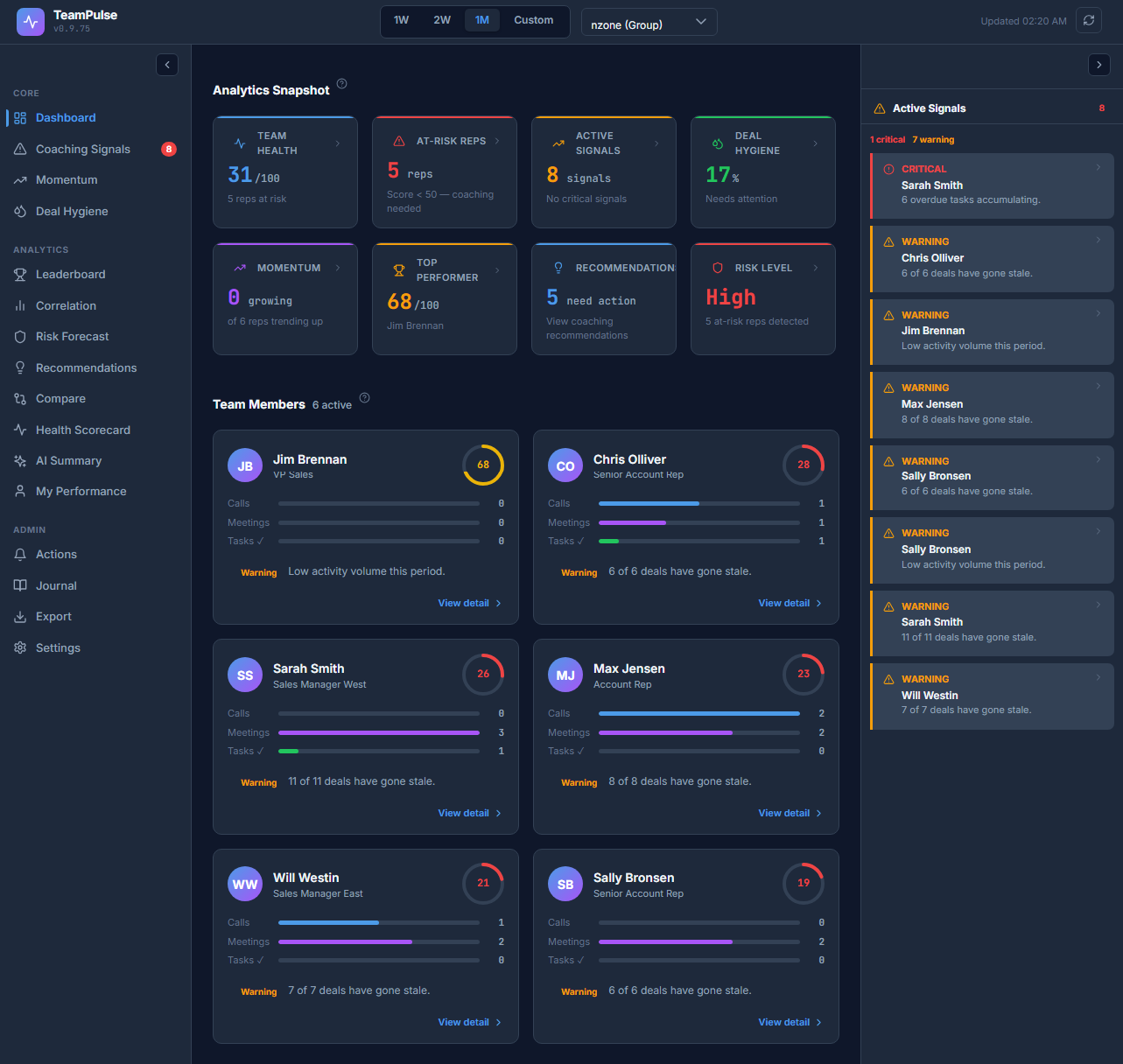
- Navigate to Settings ? AI & Data tab
- Select your provider from the dropdown (OpenAI, Gemini, Azure OpenAI, or Ollama)
- Paste your API key into the key field – it is masked on entry and AES-256-CBC encrypted before storage
- Choose your model from the model dropdown for that provider
- Optionally, edit the system prompt in the custom prompt field – this controls tone and focus of generated summaries
- Set the cache TTL – default is 6 hours, meaning summaries regenerate every 6 hours via cron rather than on every page load
- Click Save AI Settings
- Click Test Connection to confirm the key and model are functional
After a successful test connection, the next cron run (within 30 minutes) will generate your first AI-powered summary. You can also force immediate generation by clicking the Regenerate button in the AI Summary view.
Security and Privacy Architecture
API key security is handled at the database layer, not just in transit. When you save an API key in the AI & Data settings, TeamPulse encrypts it using AES-256-CBC before writing it to the teampulse_config table. The encryption key is read from the TEAMPULSE_ENCRYPT_KEY environment variable – it is never stored in the database or in any config file that ships with the extension.
Data routing is direct. When TeamPulse generates an AI summary, the request goes from your SuiteCRM server to your chosen AI provider. No data passes through TeamPulse servers. If you use Ollama with a local model, no data leaves your network at all.
Two explicit constraints apply to all AI prompts, regardless of provider or model:
- AI is prohibited from making financial forecasting, quota prediction, or revenue impact claims. All prompts are restricted to behavioral signals only.
- AI output is always labeled with a Trust Bar showing the record count used in the summary, a confidence percentage, and the generation timestamp – so readers know what data the summary reflects.
Automating AI Delivery with Scheduled Reports
Once AI summaries are generating, you can schedule their delivery via email so stakeholders receive the team health report without logging into SuiteCRM. TeamPulse v0.9.9 supports up to 10 named schedules with the following configuration per schedule:
- Name – identifies the schedule in the management panel
- Enabled flag – on/off toggle without deleting the schedule
- Frequency – Weekly, Bi-weekly, or Monthly
- Send day / Day of month – day of week for weekly/bi-weekly; DOM for monthly
- UTC hour – delivery time in UTC to coordinate across timezones
- Recipients – comma-separated list of email addresses
To create a schedule: Settings ? Schedule tab ? Add Schedule ? fill in the fields ? toggle enabled ? Save ? Send Test to confirm delivery. The Send Test action sends a test email immediately and records it in the Delivery Log with status test-sent.
The Delivery Log panel shows the last 50 delivery events per page, with columns for sent timestamp, status (sent, failed, or test-sent), recipient count, and any error message on failure. You can download the full log as CSV or clear it from the panel. This gives you an audit trail of every email delivery without needing to check server mail logs.
FAQ
Is my API key safe if someone accesses the database directly?
The key is stored as AES-256-CBC ciphertext. Without the value stored in the TEAMPULSE_ENCRYPT_KEY environment variable, the ciphertext is not reversible. Set the environment variable in your server configuration, not in any file within the web root.
Can I use AI features in an offline or air-gapped environment?
Yes, using Ollama with a locally hosted model. Llama 3.2 and Mistral are both supported. No data leaves your server. You need to provision the Ollama service and ensure it is reachable from your SuiteCRM server on the configured port.
What happens if the AI returns “No significant data”?
This response means the data passed to the prompt – rep count, signal count, score distribution – fell below the minimum threshold for the model to generate a meaningful summary. This typically occurs in environments with fewer than three active reps or where no coaching signals have been detected. The InsightEngine output is still available and usable; the narrative layer simply did not have enough data to produce a paragraph. Increase the date filter range or wait for more activity data to accumulate.
Do I need to configure BYOK to get coaching briefs for reps?
No. Coaching Briefs for reps scoring below 55 are generated by the InsightEngine and require no external API key. BYOK makes those briefs more conversational in phrasing. The structured three-point plan is always available without any provider configuration.
Start with Signals, Then Add AI
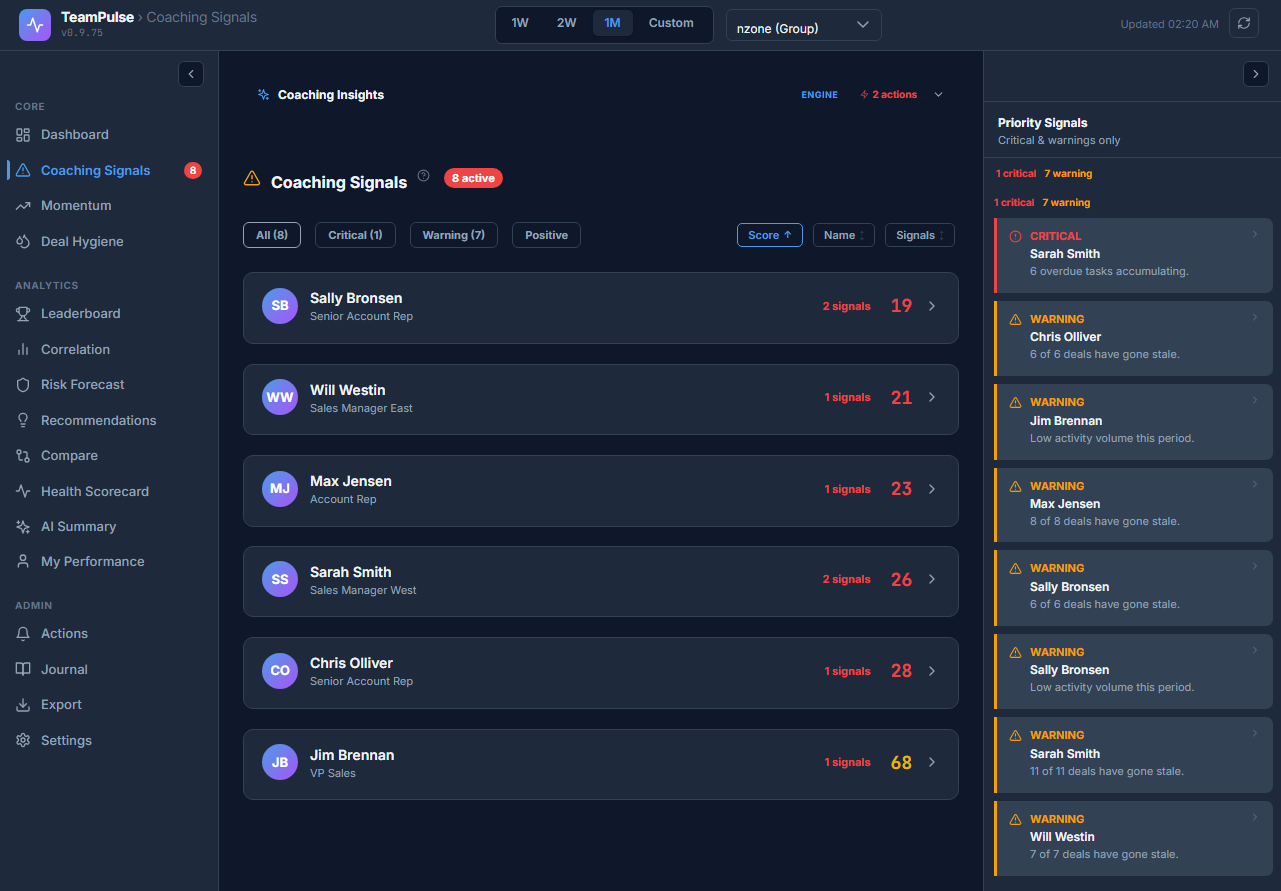
The recommended path is to install TeamPulse, work the Coaching Signals feed for one to two weeks with the InsightEngine running, and then add a BYOK provider once you are familiar with the signal types and score bands. That sequence ensures you understand what the AI is summarizing before you start forwarding those summaries to leadership or using them in rep-facing coaching conversations.
When you are ready to set up BYOK or want to understand how the Coaching Signal Engine feeds data into your AI summaries, the full signals walkthrough covers the complete detection-to-action workflow.
Read the Coaching Signals guide to see how the engine detects Stale Pipeline, Activity Anomalies, and Follow-up Gaps – and how to work the feed from signal to rep acknowledgement in under ten minutes per day. Or visit the TeamPulse product page to install the extension from the SuiteCRM Store.