
TeamPulse’s role-based access control is fully automatic – it reads directly from SuiteCRM’s existing user hierarchy. There is no separate role assignment inside TeamPulse. No configuration panel where you label someone “Manager.” The extension detects every user’s role on every API call by querying SuiteCRM sales team hierarchy setup data that already lives in your CRM. That means if your SuiteCRM user hierarchy is not mapped correctly, TeamPulse cannot function as designed. Managers see no team data. Reps see dashboards they should not access. The fix takes five minutes per user – and this guide walks through exactly what to do.
How TeamPulse Detects Roles Automatically
Every time a user loads TeamPulse, the extension calls detectRole() server-side. This function runs three checks against SuiteCRM’s user table – in order – and assigns exactly one role.
- Admin: The SuiteCRM user record has
is_admin = 1. These users see all teams’ data, all Settings tabs including the Debug panel, and every navigation group. - Manager: At least one other user record in SuiteCRM has
reports_to_idmatching this user’s ID. TeamPulse promotes these users automatically. Managers see all navigation groups except admin-only items, the Settings General / Schedule / Support tabs, and the data for their direct reports only. - Rep: Everyone else. Reps see the “My Work” sidebar group only and are redirected to My Performance on login. The router guard actively enforces this – a rep navigating directly to the Leaderboard URL is redirected back to their self-view.
The logic is sequential. A user marked is_admin = 1 who also has direct reports is classified as Admin, not Manager. No user can hold more than one role simultaneously.
Step-by-Step: Setting the Reports To Field in SuiteCRM
The Reports To field on a SuiteCRM user record is the single configuration point TeamPulse reads for Manager detection. Setting it correctly for every rep is the entire setup task.
For Each Rep on Your Team
- Log in to SuiteCRM as an administrator.
- Navigate to Admin ? User Management.
- Search for the rep’s name and open their user record.
- Click Edit.
- Locate the Reports To field. It is typically in the Advanced tab or the main user detail section, depending on your SuiteCRM version.
- Type the manager’s name in the Reports To field and select the correct user from the dropdown.
- Click Save.
- Repeat for every rep on the team.
You do not need to edit the manager’s own user record for TeamPulse purposes. The moment at least one rep has reports_to_id pointing to that manager, TeamPulse promotes the manager on their next login.
Multi-Team Setup
TeamPulse supports multiple teams operating in the same SuiteCRM instance. The structure is straightforward: each team has one manager, and each rep reports to that manager. Managers themselves do not need to report to anyone for TeamPulse to work correctly.
If your organisation has a VP or director above the managers, that person should be set as a SuiteCRM admin (is_admin = 1) rather than having the managers set their reports_to_id to the VP. Admin-role users see all teams’ data across the entire instance. A manager-role user sees only their direct reports – no cross-team visibility is granted at the Manager level.
| Role | SuiteCRM condition | TeamPulse data scope |
|---|---|---|
| Admin | is_admin = 1 |
All teams, all reps |
| Manager | At least one rep has reports_to_id = this user’s ID |
Direct reports only |
| Rep | Neither of the above | Self only (My Performance) |
Verifying the Setup in TeamPulse
After setting the Reports To field for all reps, verify the configuration directly in TeamPulse before rolling it out to the team.
Check 1: Manager Login
Log in to SuiteCRM as a manager. Open TeamPulse. The dashboard should display the Discipline Score tiles for each of their direct reports. If the dashboard shows only a single rep (the manager themselves), the reports_to_id values have not been saved correctly – return to User Management and verify each rep’s record.
Check 2: Rep Login
Log in as a rep. TeamPulse should open directly on My Performance – the rep’s own behavioral scorecard. If the rep can see the Leaderboard or team-level analytics, the reports_to_id for that user was not set, leaving them classified as Rep but with an incorrect navigation scope.
Check 3: Settings – System Information
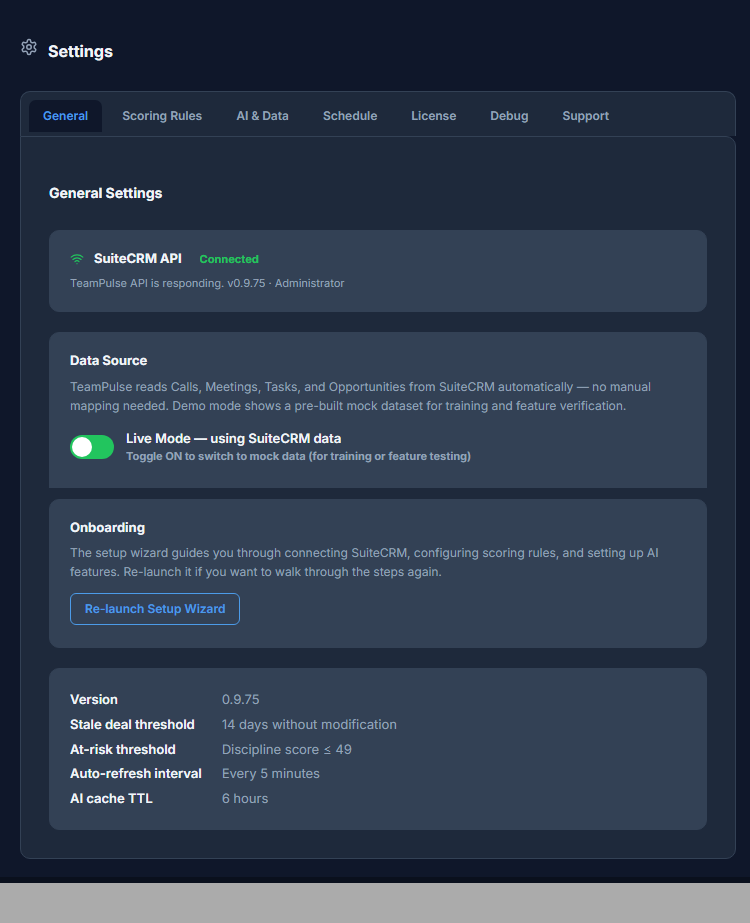
Log in as an admin. Go to Settings ? General. The System Information section shows the current user’s detected tp_role value. Use this view when troubleshooting specific users – log in as the user in question (or ask them to share the panel) and confirm the detected role matches expectations.
Common Configuration Mistakes
Rep Set to Report to Themselves
SuiteCRM allows a user’s reports_to_id to reference their own user ID. This creates a self-reference loop. TeamPulse handles this gracefully – the self-referencing user is classified as a Rep, not a Manager – but the rep’s hierarchy data will be absent from any manager’s view. Fix it by setting the correct manager in the Reports To field.
SuiteCRM Teams Are Not the Same as TeamPulse RBAC
SuiteCRM has a native Teams feature that controls record-level visibility across the CRM. TeamPulse does not read SuiteCRM Teams for role detection. A user added to a “Sales Team” group in SuiteCRM Teams is still classified as a Rep in TeamPulse unless their reports_to_id is correctly set. These are two separate systems. Do not confuse them.
Manager Added to SuiteCRM Team But Reports To Not Set for Reps
This is the most common configuration gap. Admins set up SuiteCRM Teams correctly for record visibility, assume TeamPulse will inherit that structure, and skip setting Reports To on individual rep records. TeamPulse cannot read SuiteCRM Team membership. Every rep’s Reports To field must be set individually.
What Happens If You Skip This Step
Without correct reports_to_id values, every non-admin user is classified as Rep. Managers log in and see only their own My Performance view. No team dashboard appears. No Leaderboard populates. The Coaching Signals panel returns no members.
If you suspect this is happening, navigate to Settings ? Debug (admin only). The Data Audit panel shows the detected member count for each team based on the current hierarchy. A count of 0 members across all teams confirms that no reports_to_id relationships are being read correctly.
Hierarchy Setup Is a One-Time Task
Once every rep’s Reports To field is set, the hierarchy is persistent. New reps added to the team simply need their Reports To field populated before their first TeamPulse login. Managers who change teams require their reps’ Reports To fields to be updated – TeamPulse re-detects roles on every API call, so the change is effective immediately after saving the user record in SuiteCRM.
The entire setup for a 10-rep team takes under 15 minutes. The behavioral intelligence that follows – Discipline Scores, Coaching Signals, Leaderboard rankings – flows automatically from there.
Ready to see how role-scoped behavioral analytics work in practice? Read the full TeamPulse RBAC and Role Scoping documentation for a complete breakdown of what each role sees across every view in the extension.