Before you point any analytics tool at your live sales data, you want confidence in what it shows and how it behaves. TeamPulse license activation in SuiteCRM is designed with that concern in mind. The extension ships with a fully functional Demo Mode – no license required – so you can explore every view, score calculation, and coaching signal against realistic fictional data before a single live record is touched. This guide explains what Demo Mode gives you, how to activate your license, and how to make the switch to live CRM data safely.
Why Start in Demo Mode
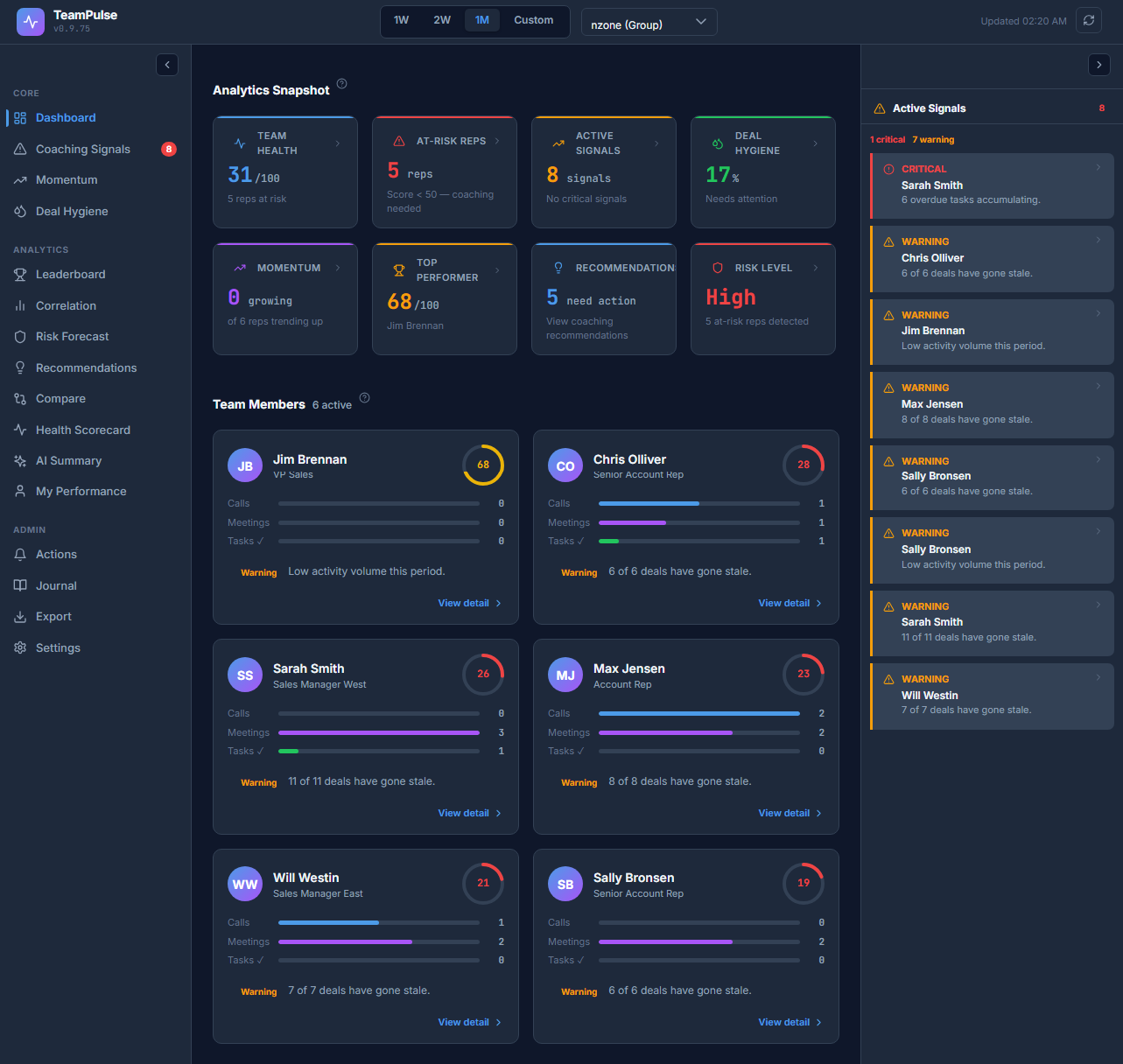
Demo Mode exists to eliminate evaluation risk. Every sales intelligence tool carries the same early concern: “What if the scores or views don’t make sense for my team?” Running against fictional data answers that question without exposing live pipeline data to an unconfigured system.
Demo Mode loads 25 fictional sales reps distributed across three mock teams: Midmarket, Enterprise, and SMB. These reps have pre-built activity histories, score distributions, and coaching signals designed to demonstrate the full range of TeamPulse’s behavioral model – including reps in the At-Risk band (score ≤ 49), reps in the Exceptional band (90-100), and everything between.
You can use Demo Mode for:
- Pre-purchase evaluation without a license key
- Training managers and admins before switching to live data
- Demonstrating the tool to stakeholders using safe, non-sensitive data
- Validating that the extension installed and runs correctly
Demo Mode requires no license. Install TeamPulse, complete the onboarding wizard, and the Dashboard loads immediately in Demo Mode. You can stay in Demo Mode indefinitely – switching to live data requires a valid license.
Activating Your TeamPulse License
When you are ready to move beyond evaluation, license activation takes under two minutes.
Where to Find Your License Key
Your license key is in the purchase confirmation email from the SuiteCRM Store. It is a string tied to your billing plan – Monthly, Yearly, or One-time. Each plan key is distinct; a Yearly key will not activate on a Monthly installation, and vice versa. If you cannot locate the email, log in to your SuiteCRM Store account and open your order history.
Activating in Settings
Inside SuiteCRM, navigate to TeamPulse and open Settings → License. Paste your full license key into the activation field and click Activate.
TeamPulse sends the key to the SuiteCRM Store validation API. If the key is valid and not already active on another installation, the activation succeeds within a few seconds. The license status updates to Licensed (displayed in green). The validated license is cached locally for 24 hours, so TeamPulse continues to function normally in environments with intermittent internet access – it does not call home on every page load.
If your server does not have outbound internet access, TeamPulse falls back to an offline HMAC validation path. Contact support with your license key and server details if you need to enable this path explicitly.
Understanding the Four License States
TeamPulse displays one of four license states at all times. Knowing what each state means prevents confusion during setup and renewal.
| State | Display | Meaning |
|---|---|---|
| Licensed | Green | Valid active license; live data mode available |
| Trial | Amber | 30-day full access; all features unlocked including live data |
| Unlicensed | Red | No valid key present; Demo Mode forced; live data blocked |
| Active | Blue | Development environment; localhost bypass active; not for production |
Trial State
The Trial state grants 30-day full access to all TeamPulse features, including live data mode. It is intended for paid evaluations where you need to test against your actual SuiteCRM records before committing to a subscription. Trial does not require a permanent license key – the timer begins on first activation and counts down regardless of usage.
Unlicensed State
If you install TeamPulse without activating a license, or if a license expires and is not renewed, the extension enters the Unlicensed state. In this state, the data source toggle is locked and all attempts to switch to Live Mode display an inline error. Demo Mode remains fully functional – no data is lost and the extension continues to operate, just against mock data only.
Active State (Development)
The Active state is a developer bypass for localhost environments. It does not require a Store API call and is not intended for production deployments. If you see this state on a production server, review your TeamPulse configuration – it may indicate a misconfigured environment detection.
Switching from Demo Mode to Live Data
With a Licensed or Trial license active, you can switch TeamPulse to read from your real SuiteCRM records.
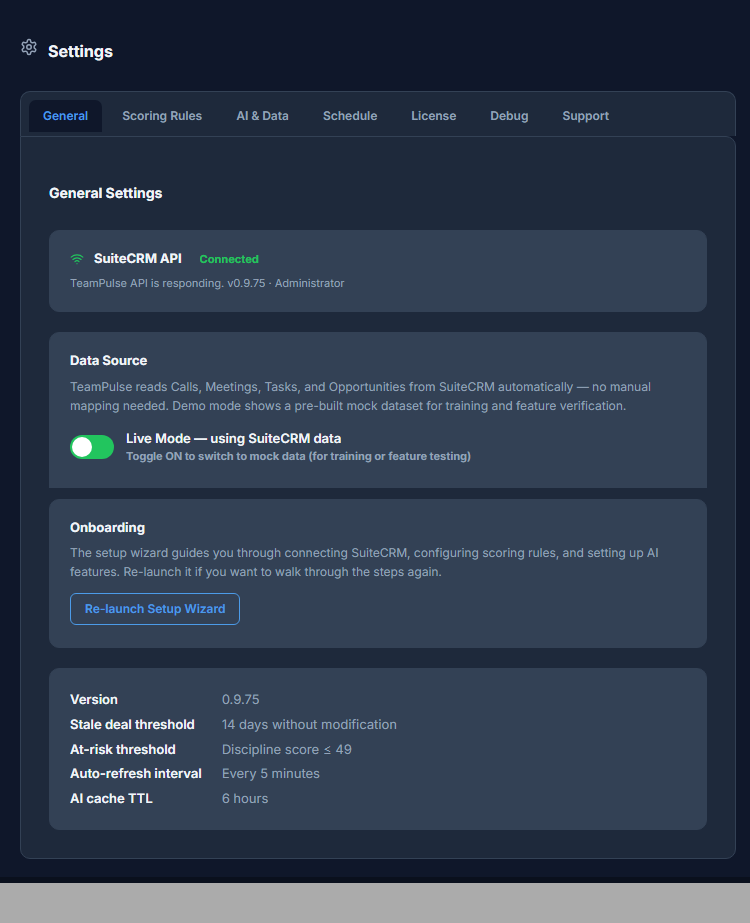
Go to Settings → General and locate the Data Source toggle. Switch it from Demo to Live and save. TeamPulse immediately begins pulling activity data from the following SuiteCRM modules:
- Calls – logged call activity and scheduled calls per rep
- Meetings – completed and upcoming meeting records
- Tasks – open and closed tasks with due dates
- Opportunities – pipeline stage, close date, and deal value
The scoring engine runs server-side in PHP using these records to calculate each rep’s behavioral score across five factors. Scores update on the next scheduler run – the “TeamPulse – AI Summary & Cache Refresh” job fires every 30 minutes. On first switch to live data, you may see placeholder scores for a few minutes while the initial cache populates.
If you attempt to toggle to Live Mode without a valid license, TeamPulse blocks the switch with an inline error message. The toggle reverts to Demo and no data is read from live records.
Plan ZIP Matching: Why It Matters
TeamPulse ships three separate ZIP files from the SuiteCRM Store – one per billing plan. This is not just packaging – each ZIP contains a plan-specific validation signature. The installed ZIP must match your license key’s plan:
- Monthly ZIP + Monthly license key = activation succeeds
- Yearly ZIP + Monthly license key = activation fails
- One-time ZIP + Yearly license key = activation fails
If you upgrade from Monthly to Yearly billing, you must re-download the Yearly ZIP, reinstall via Module Loader, run Quick Repair and Rebuild, and then activate your new Yearly key. The old Monthly installation cannot be reused with a different plan key.
Frequently Asked Questions
Can I switch back to Demo Mode after going Live?
Yes. The Data Source toggle in Settings → General works in both directions. Switching back to Demo Mode is instant and does not affect your live SuiteCRM records in any way. Your license remains active and the Live option stays available whenever you want to switch back.
Can I share a license key across multiple SuiteCRM instances?
No. Each license key is validated against a single SuiteCRM installation. Attempting to activate the same key on a second server will fail at the Store API validation step. If you run multiple SuiteCRM environments (for example, staging and production), you need a separate license for each.
What happens if license validation fails after activation?
TeamPulse caches a successful validation result for 24 hours. If the Store API is unreachable during a re-validation check and the 24-hour cache has not expired, TeamPulse continues to operate normally. If the cache expires and the API remains unreachable, TeamPulse falls back to offline HMAC validation. If that also fails – for example because the license key has been revoked – the extension enters the Unlicensed state and Demo Mode is forced until a valid license is re-established.
Does the Trial count down if I only use Demo Mode?
Yes. The 30-day Trial timer starts on first activation and runs regardless of whether you use Demo or Live data during the period. If you want to fully evaluate live data behavior, activate the Trial and switch to Live Mode promptly rather than spending trial days in Demo Mode.
Where do I renew or upgrade my license?
All renewals and plan upgrades are handled through your SuiteCRM Store account. After renewing, download the updated ZIP for your plan, reinstall, and re-activate with the new key.
What Live Mode Gives You That Demo Mode Cannot
Demo Mode is accurate enough for evaluation, but it cannot replicate your team’s actual behavioral patterns. The fictional reps in Demo Mode are engineered to show a spread of scores – they do not reflect your industry, your deal cycle length, your rep tenure mix, or your call volume norms.
When you switch to live data, TeamPulse scores your actual reps against their actual activity. Reps who are genuinely at risk surface immediately. Coaching signals reflect real gaps, not fictional ones. The AI summaries – generated every 30 minutes by the background scheduler – describe your real pipeline health, not a demo narrative.
The score bands are the same in both modes: 90-100 is Exceptional, 70-89 is Standard or Strong, 50-69 Needs Coaching, and 0-49 is Critical. But in live data, those bands carry weight. A rep sitting at 42 in your live dashboard is a real person with a real gap that needs a real conversation this week.
Ready to Configure Your Scoring Rules?
Now that your license is active and live data is flowing, the next step is understanding how TeamPulse calculates each rep’s score and how the five behavioral factors are weighted. The scoring model is designed to reflect activity discipline, deal hygiene, and coaching responsiveness – not just raw call volume.
Read the TeamPulse Scoring Engine and Configuration Guide to understand the five-factor model and what each weight controls, so you can interpret your team’s scores with confidence.