
Demo Mode — What It Is and How to Exit
Revenue Engine AI ships with a built-in Demo Mode that populates every dashboard view with a realistic synthetic dataset. This lets you explore the full interface, coach your team on how to read the views, and evaluate the product — without needing live CRM data during setup.
This guide explains what Demo Mode is, why it exists, how to tell when it is active, and how to switch back to live data.
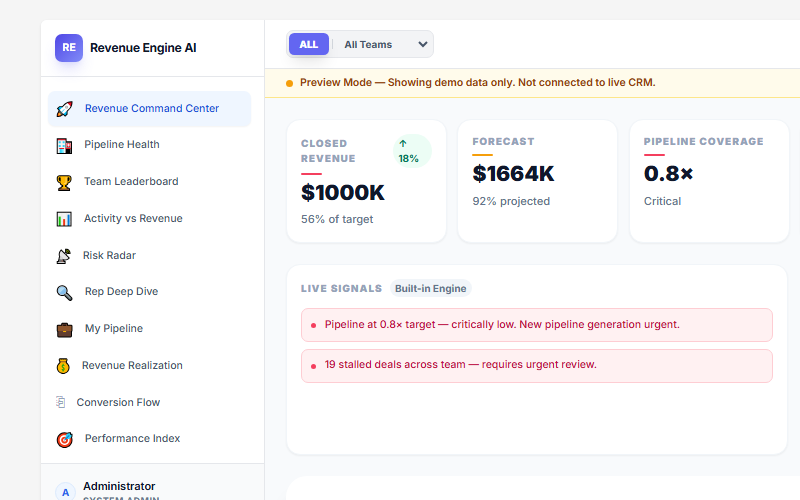
What Demo Mode Is
When Demo Mode is active, Revenue Engine AI replaces all SuiteCRM database queries with a pre-loaded synthetic dataset. This dataset represents a fictional enterprise SaaS sales organisation with 18 named sales representatives, realistic pipeline distributions, staged opportunity data, and activity history across multiple teams.
The demo data is stable — it does not change between sessions — which makes it useful for training new managers on how to interpret dashboard views before they have sufficient real CRM data to analyse.
What the demo dataset includes
- 18 sales reps across multiple teams, with varied performance profiles
- An Indian SaaS organisational hierarchy (mix of enterprise and SMB territories)
- Open and closed opportunities across all pipeline stages
- Activity history (calls and meetings linked to opportunities)
- Realistic Revenue Command Center KPIs, Risk Radar signals, and Leaderboard rankings
Important: All figures shown in Demo Mode are fictional. They do not reflect your organisation’s actual pipeline, revenue, or team performance in any way.
How to Tell If Demo Mode Is Active
When Demo Mode is switched On, an amber banner is displayed at the top of every dashboard view:
“Preview Mode — This dashboard is running on demo data. Live data is not active.”
This banner is intentionally prominent so that users cannot mistake demo figures for real CRM data. If you see this banner, none of the numbers on screen reflect your SuiteCRM instance.
Additional indicators that Demo Mode is active:
- Rep names will be unfamiliar (the synthetic 18-rep dataset uses fictional names)
- Revenue figures may appear unusually round or consistent
- The Settings → View Preferences panel will show the Demo Mode toggle in the “On” position
How to Exit Demo Mode
There are two ways to switch off Demo Mode and restore your live SuiteCRM data:
Method 1: Via the Banner (Fastest)
- Click the “Restore Live Data →” button on the amber banner at the top of any dashboard view.
- The dashboard will reload immediately using your live SuiteCRM data.
- The amber banner will disappear.
Method 2: Via Settings
- Click the Settings icon in the dashboard header (top-right area).
- Navigate to View Preferences in the Settings accordion.
- Find the Demo Mode toggle and switch it to Off.
- Click Save Changes.
- Return to any dashboard view — it will now display live data.
When to Use Demo Mode
Demo Mode is not just a setup tool — there are several ongoing legitimate uses for it:
| Scenario | Why Demo Mode helps |
|---|---|
| New manager onboarding | Walk a new sales manager through every view using realistic data before they have access to live pipeline — avoids confusion from empty or sparse CRM data during early ramp |
| Sales team training | Demonstrate how to read the Performance Index, interpret Risk Radar signals, or use Rep Deep Dive in a workshop without revealing real rep performance data |
| Product evaluation | Explore all 13 views during a trial or pre-purchase evaluation with a fully populated dataset |
| Feature testing after updates | After a version upgrade, verify that all views render correctly using the stable demo dataset before switching back to live data |
| Stakeholder demonstration | Present the dashboard to leadership or investors without exposing confidential pipeline data |
Common Problem: Demo Mode Left On Accidentally
The most common support request related to Demo Mode is: “The dashboard is showing strange numbers that don’t match our CRM.”
In almost all cases, this is caused by Demo Mode being left On after initial setup or a training session. Before investigating any data discrepancy, always check the amber banner first.
Checklist if the data looks wrong
- ☐ Is the amber “Preview Mode” banner visible at the top of the dashboard? If yes → click “Restore Live Data →”.
- ☐ Is Demo Mode toggled Off in Settings → View Preferences?
- ☐ After disabling Demo Mode, does a Quick Repair & Rebuild in SuiteCRM Admin resolve any remaining issues?
If you have confirmed Demo Mode is Off and the data still appears incorrect, proceed to the Troubleshooting Guide or use the Data Audit & Diagnostics view (admins only) to compare raw database counts against what the dashboard is displaying.
Demo Mode and Role Access
Demo Mode is controlled via the Settings panel. Access to the Settings panel — and specifically to the View Preferences section — is governed by the RBAC tier assigned to your role:
- Admin: Full access — can enable and disable Demo Mode at any time.
- Manager: Read-only access to the Demo Mode toggle — can see whether it is on, but cannot change it without admin assistance.
- Basic (Rep): Cannot see the Demo Mode toggle — they will only see the amber banner if Demo Mode is active.
If a rep reports seeing the amber banner and cannot dismiss it, an admin or the account’s system administrator needs to disable Demo Mode via Settings.
Revenue Engine AI v1.7.2 · Built by Zybroz · support@zybroz.com