
The average sales manager checks five to eight reports every morning trying to answer one question: who needs my attention today? Most CRMs don’t answer that question – they just give you more data to sort through. TeamPulse changes that with automated sales coaching for SuiteCRM, surfacing exactly who needs intervention, why, and what to do about it – in a single prioritized feed.
What the Coaching Signal Engine Does
The Coaching Signal Engine runs server-side on every cron cycle – every 30 minutes by default. On each pass, it compares each rep’s recent activity patterns against configurable thresholds and generates or updates signals accordingly. There is no manual refresh required. By the time you open your dashboard, the feed already reflects the last half-hour of CRM activity.
Signals are not generic alerts. Each signal maps to a specific behavioral pattern detected in the data: a deal that has not moved in over 30 days, an activity count that dropped more than 20% from the prior period, a rep who has not logged in for an extended stretch. The engine identifies the pattern, tags the severity, and adds it to the feed.
Understanding the Four Severity Tiers
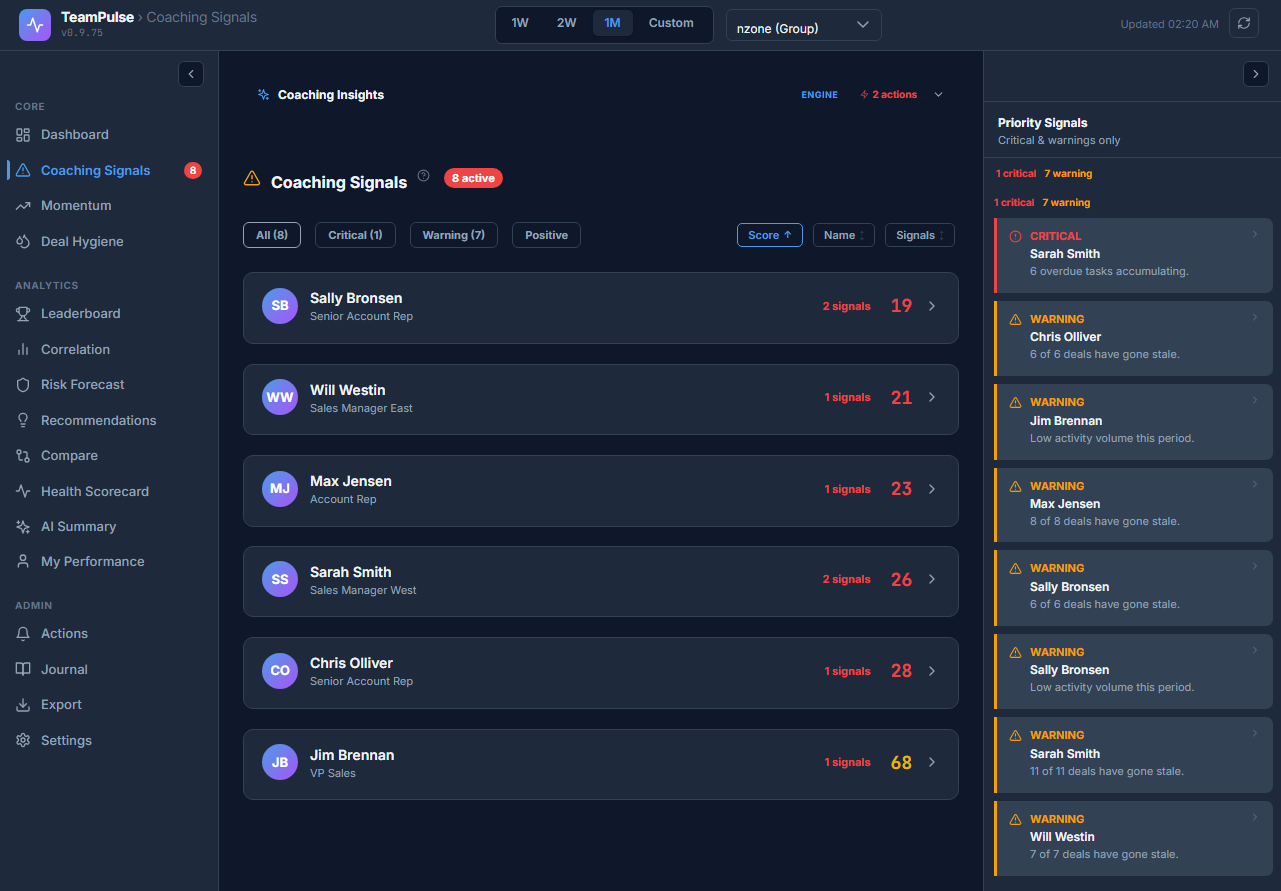
Every signal carries one of four severity levels. The tier determines how urgently you need to act, not just how the row is colored.
- Critical (red) – The rep has a measurable performance gap that is actively costing pipeline. Act within 24 hours. Examples: stalled high-value deal, sustained activity drop, rep scoring below 50.
- Warning (amber) – A pattern that is developing but has not yet caused visible pipeline damage. Monitor closely; schedule a check-in.
- Info / Neutral (blue/grey) – Contextual signal. No action required, but useful for 1:1 preparation or trend tracking.
- Positive (green) – The rep is excelling in a specific area. Use these for recognition and to set expectations for the rest of the team.
Filter chips at the top of the Signals view let you isolate any tier instantly: All, Critical, Warning, or Positive. When you have twenty reps on a team, working the Critical filter first is the most efficient use of your first fifteen minutes of the day.
The Five Signal Types Explained
TeamPulse v0.9.9 ships with five named signal types. Understanding each one helps you calibrate your response.
Stale Pipeline
Triggered when a deal has had no logged activity and no next step set for more than 30 days. This is the most common signal in CRM environments where pipeline hygiene is enforced inconsistently. A single Stale Pipeline signal on a high-value opportunity warrants immediate follow-up with the rep.
Activity Anomaly
Triggered when a rep’s logged activity count drops more than 20% compared to their baseline for the same period type. This signal often precedes quota miss by four to six weeks – which is exactly why catching it early matters. The anomaly is measured against the rep’s own baseline, not a team average, so a naturally lower-volume rep does not trigger a false positive.
Follow-up Gaps
Identifies contacts or leads that received an initial outreach but have no follow-up activity logged within the expected window. High follow-up gaps indicate a rep is generating pipeline that is then leaking before it can be worked.
Login Gaps
Detects periods where a rep has not logged into SuiteCRM within a threshold window. Login gaps do not always indicate a performance problem – travel, out-of-office periods, and external tools can all contribute. But combined with other signals, a login gap is a meaningful data point for a coaching conversation.
High Effort Low Conversion
Flags reps who are logging a high volume of activity – calls, emails, meetings – but converting that activity into fewer opportunities or closed deals than expected. This signal often points to a skills gap rather than an effort gap: the rep is working hard but needs coaching on qualification or closing technique.
The PageInsight Accordion
At the top of the Coaching Signals view, the PageInsight accordion gives you instant situational awareness before you read a single row. It shows a text summary – generated by the InsightEngine – that includes the total critical signal count, the names of the reps carrying those critical signals, and a one-line team verdict.
This means a manager can open the Signals view and know within five seconds whether the team is in a stable state or requires immediate triage. The accordion collapses so it stays out of the way once you have read the summary and are ready to work the feed.
Working the Feed: From Signal to Action
The Coaching Signals feed is designed to be worked top to bottom, filtered by Critical, sorted by score or signal count depending on your priority logic. For each rep row, you have three actions directly in the feed.
Mark Reviewed dims the signal and removes it from the active count. Use this when you have reviewed the context and determined no action is needed – for example, a Login Gap during a period you know the rep was at an industry conference.
Assign Task creates a task record directly in SuiteCRM, assigned to the rep. The task is linked to the signal context so the rep knows exactly what is being asked. This is the fastest path from signal detection to accountable action.
Send Action opens a panel where you choose one of three communication types: Alert, Kudos, or Coaching Note. Each appears in the rep’s own My Performance view, where they can see it the next time they log in.
The Action Loop: From Manager Feed to Rep Acknowledgement
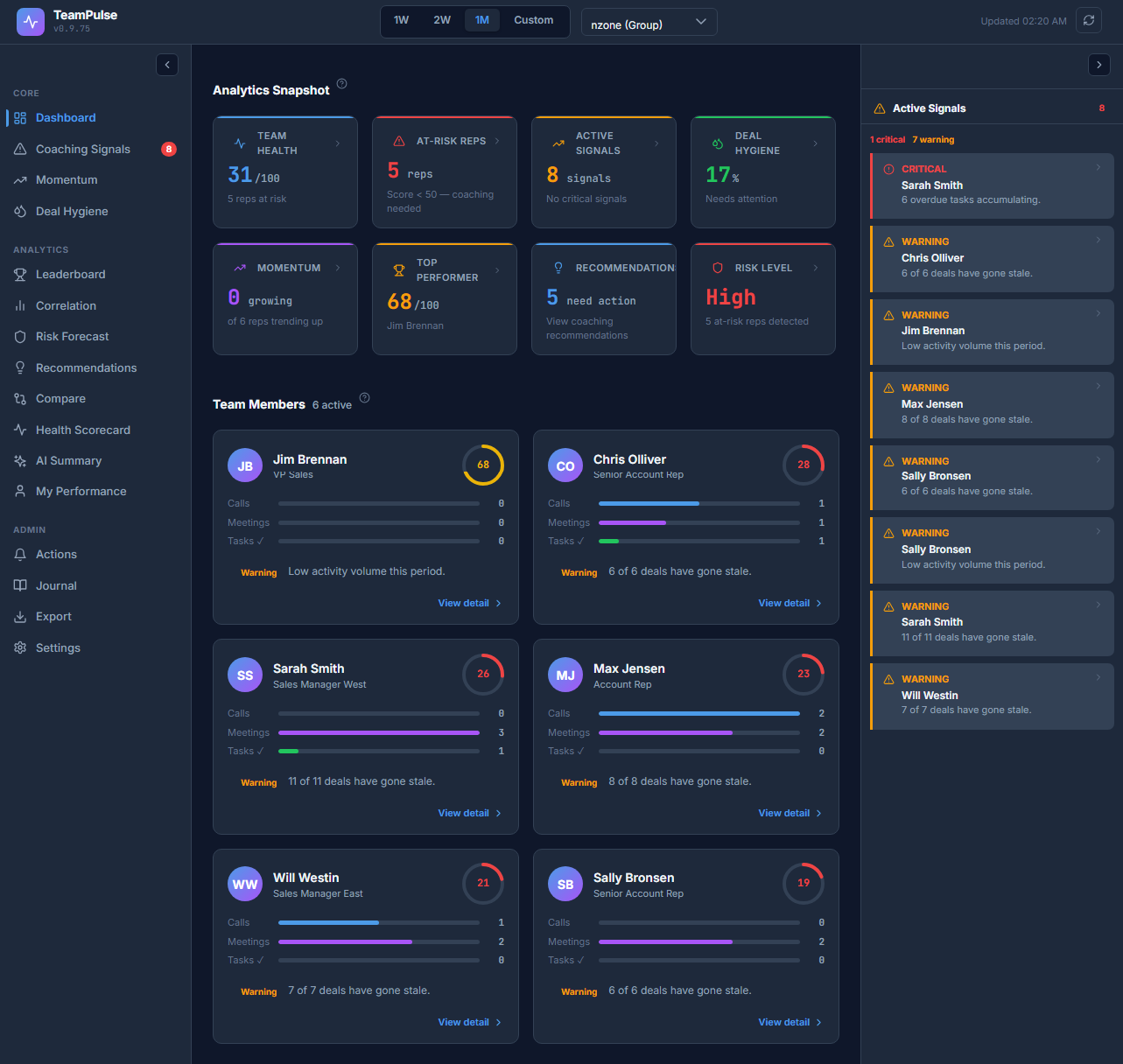
When you send a Coaching Note or Alert from the Signals feed, it enters the rep’s Action Feed in their self-view. The rep sees the message, reads the context, and clicks Acknowledge to confirm they have read it. That acknowledgement removes the message from their unread queue and records the timestamp.
From the manager side, the acknowledged status is visible in the Action Feed. You do not need to follow up manually to confirm the rep saw the note – the system tracks it. This closes the loop between signal detection and rep awareness without requiring an additional meeting or email thread.
Kudos work the same way. When a rep hits a streak or converts a difficult deal, sending a Kudos note through the feed takes ten seconds and appears in the rep’s view immediately. Recognition that is timely and specific is more effective than end-of-quarter acknowledgements.
Import from Signals: Preparing for a Data-Backed 1:1
Before a scheduled 1:1, open the rep’s signal row and use the Import from Signals option in the Journal panel. This pre-fills a journal entry with the rep’s active critical signals – signal type, severity, and the date the signal was first detected – so you walk into the conversation with the relevant facts already organized.
The journal entry is editable. Add your own observations, outcome notes, and agreed actions directly in the entry. After the meeting, save it. The journal creates a timestamped record of coaching conversations that is attached to the rep’s profile, not buried in an email thread or a separate note-taking tool.
Current Coaching Briefs
For any rep whose composite score falls below 55, the InsightEngine generates a Current Coaching Brief automatically. The brief is a three-point action plan derived from the rep’s specific signal profile – not a generic template. The brief surfaces in the Signals view and can be reviewed before a 1:1 or used as the basis for an Assign Task action.
Coaching Briefs are regenerated each time the InsightEngine runs, so they reflect the most current signal state. If a rep’s score improves above 55, the brief is removed from the active feed.
Sorting the Feed
The feed supports three sort modes: by Score (ascending – lowest scorers first), by Name (alphabetical for quick lookup), and by Signals Count (reps with the most active signals at the top). For daily triage, sort by Score with the Critical filter active. For preparing weekly reports, sort by Signals Count to see who has accumulated the most unreviewed signals.
FAQ: Why Does a High-Scoring Rep Have Several Warning Signals?
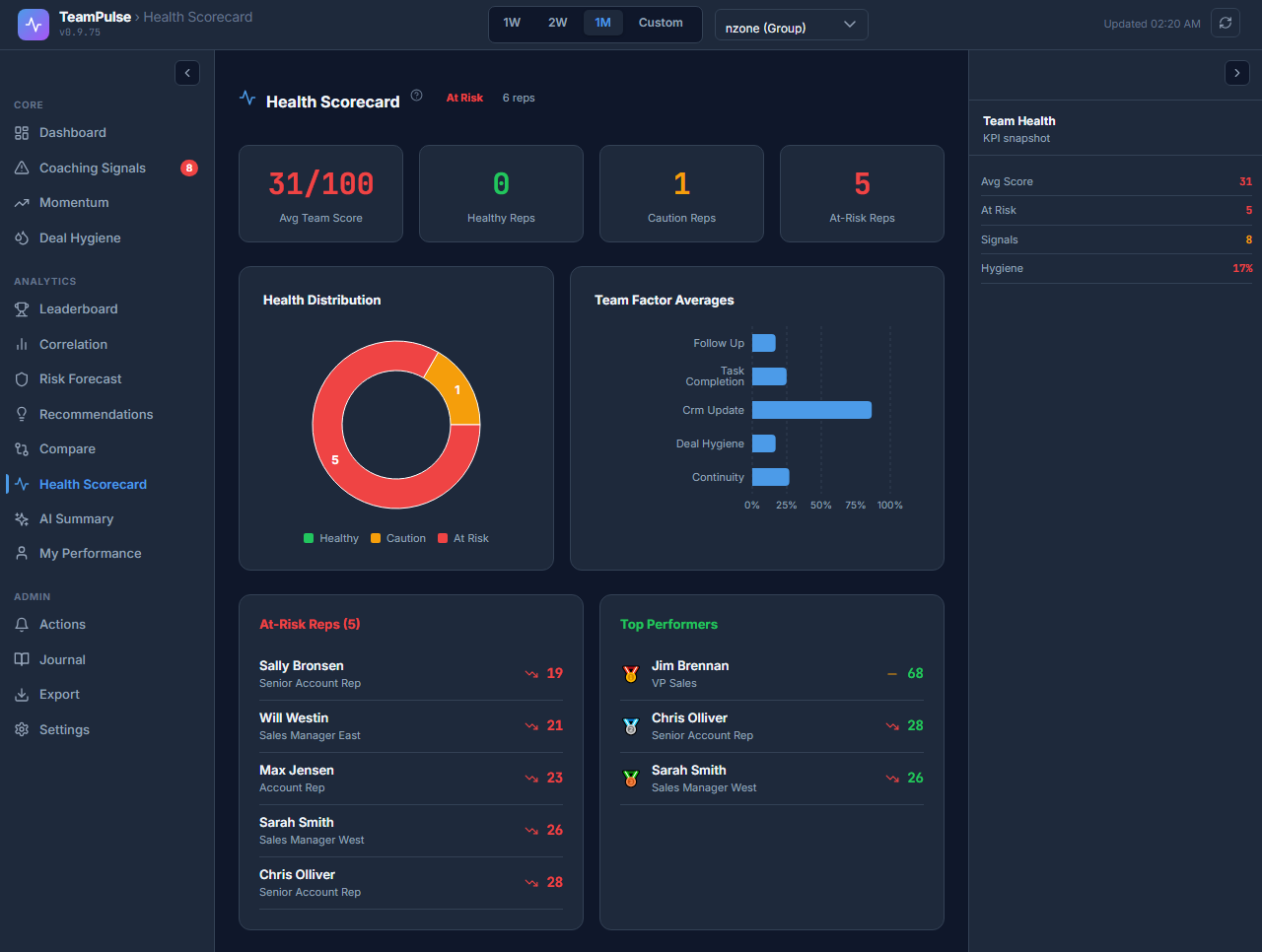
A composite score above 70 reflects overall health across five factors: pipeline activity, engagement consistency, follow-up discipline, opportunity conversion, and CRM hygiene. A Warning signal targets a specific behavior within one of those factors. A rep can be strong across four of the five dimensions – producing a healthy overall score – while having a single area where a pattern is developing. The score and the signals are complementary views of the same data, not redundant ones. Use the score to prioritize who needs attention first; use the signals to understand precisely what to address in that conversation.
What to Do Next
The Coaching Signal Engine gives you the detection and the action tools. Pairing it with TeamPulse’s AI layer takes the next step: natural language summaries of team patterns, coaching scripts for reps below threshold, and scheduled email delivery of the team health report to your inbox every Monday morning.
Read the AI configuration guide to connect the InsightEngine output to OpenAI, Gemini, Azure, or a local Ollama model – or to understand what you get without any API key at all.