
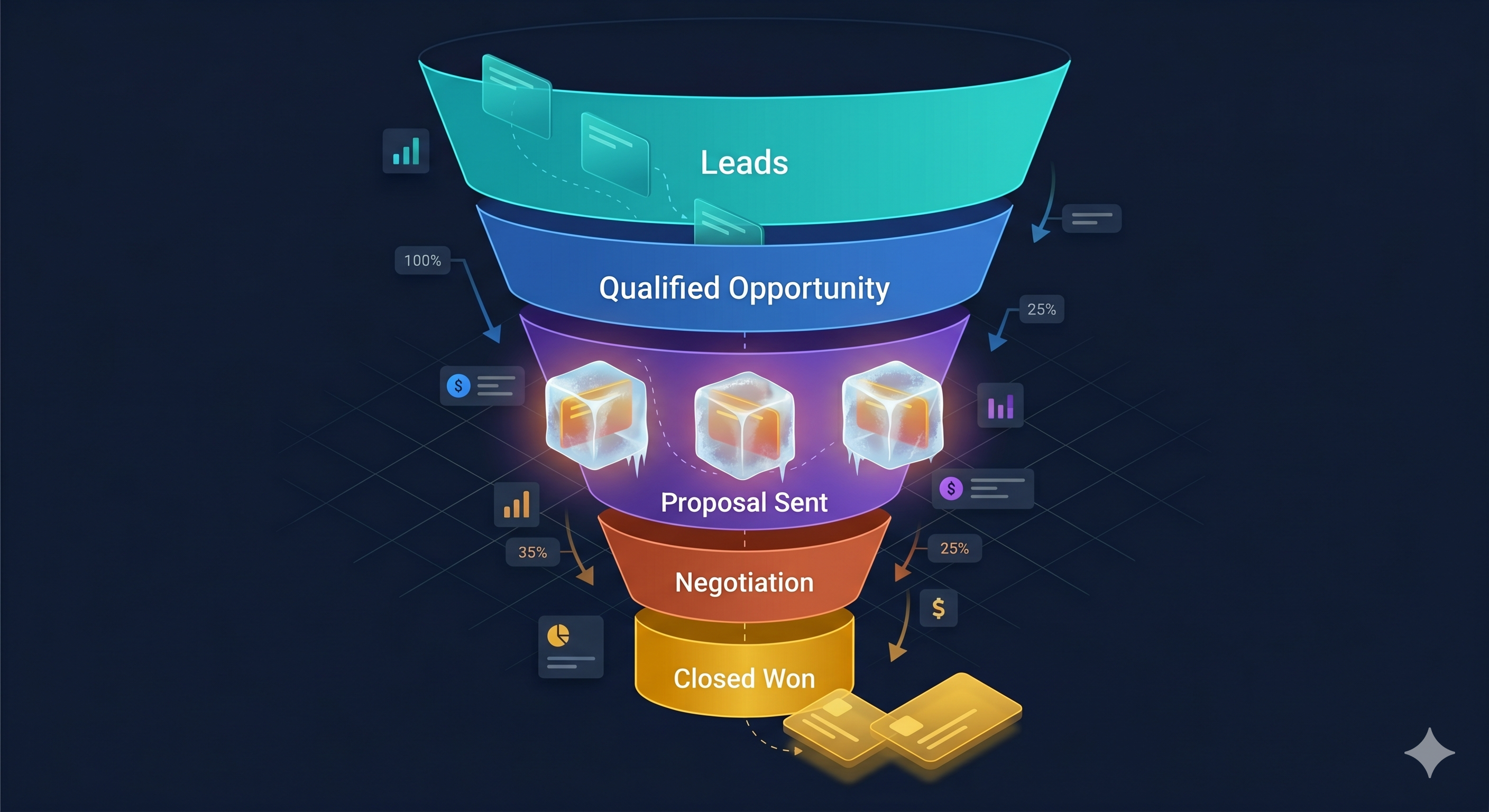
Here is a situation every sales manager has lived through. It’s the last week of the quarter. You pull up your pipeline and realise that four of the deals you were counting on to close haven’t moved in three weeks. The rep hasn’t logged a call. The close date passed quietly. The deals aren’t lost — they’re just stuck. And by the time you noticed, there was no time left to save them.
This is what we call “Next-Deal Paralysis” — when reps are so focused on chasing the next new deal that they let existing opportunities go cold. And in SuiteCRM, where deals can sit in “Negotiation” for weeks without triggering any alert, the problem is invisible until it is too late.
Why Stalled Deals Are Invisible in Standard SuiteCRM
SuiteCRM tracks deal stages and activity logs, but it does not proactively surface inactivity. To find out which deals haven’t moved, a manager must manually check each opportunity’s history, run a report filtered by “last modified date,” or rely on reps to self-report problems they may not even have noticed themselves.
By the time a manager sees the problem in a weekly 1:1, the deal has often already been lost — or the prospect has gone cold and will take weeks to re-engage.
Revenue Engine AI solves this by automating the detection, so managers know about stalled deals before the 1:1, not during it.
The Risk Radar: Automated Stall Detection
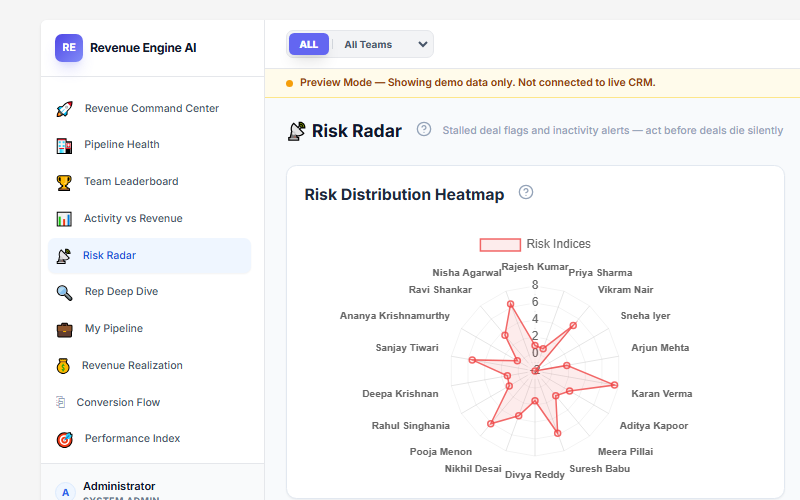
The Risk Radar view in Revenue Engine AI monitors two specific risk factors for every open opportunity in your SuiteCRM instance:
1. Stalled Deals — No Stage Change in 14+ Days
The system flags any opportunity that has not had a stage change in 14 or more calendar days. This is not about deal age — a deal can be 60 days old and still healthy if it is progressing through stages. The flag is specifically about movement.
A deal stuck in “Proposal Sent” for 18 days is not moving. Either the prospect is not engaging, or the rep is not following up. Either way, a manager needs to know.
2. Rep Inactivity — No Logged Activity in 7+ Days
Revenue Engine AI queries the calls_opportunities and meetings_opportunities join tables in SuiteCRM to calculate the number of days since a rep last logged a call or meeting against an open deal.
If a rep has not logged any contact with a deal in 7 or more days, an inactivity flag is triggered. This is separate from the stall flag — a deal can be progressing in stage but still have no recent activity, which is itself a risk signal.
Action Trigger: Before every 1:1, open the Risk Radar. For each flagged rep, identify the specific stalled deal and prepare one targeted question about that deal’s roadblock — rather than asking for a general pipeline update.
Daily Prioritisation with the My Pipeline View
The Risk Radar gives you a team-level overview of deal health. The My Pipeline view gives individual reps the deal-level view they need for daily prioritisation.
Every deal card in My Pipeline is colour-coded based on close date urgency:
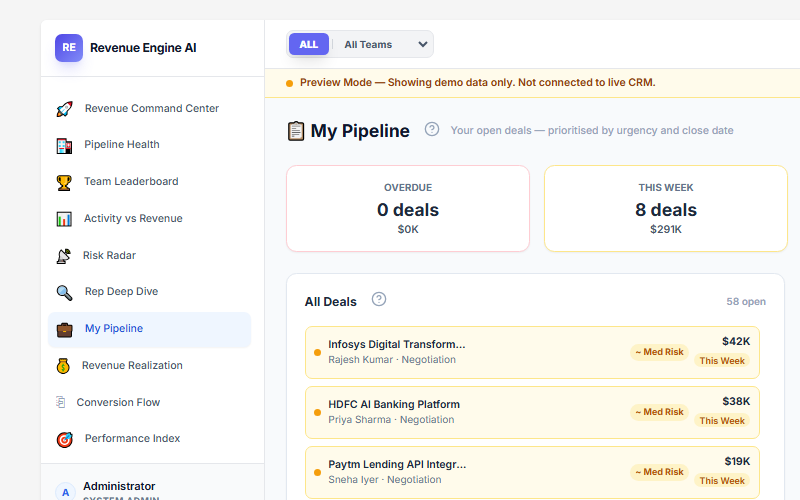
- Red — Overdue: The expected close date has already passed. This deal needs a call today. Either update the close date with a realistic new date, or disqualify the deal and move on.
- Amber — Closing This Week: The deal is scheduled to close within the current 7-day window. Now is the time to verify that all stakeholders are aligned and there are no last-minute blockers.
- Yellow — Closing Next Week: The deal closes in the upcoming week. Schedule a check-in now to ensure no roadblocks will emerge at the deadline.
The “⏱ Xd Silent” Badge
Alongside the close-date colour coding, each deal card displays a silence badge showing how many days have passed since the last logged call or meeting:
- No badge (≤7 days): Healthy — the deal has recent engagement
- Amber badge (8–20 days silent): The deal is beginning to cool. A pulse-check call is needed soon
- Rose badge (21+ days silent): Critical stall. This deal is at high risk and will incur a penalty in the Performance Index calculation
If you see a deal card showing both a Red close-date badge and a Rose silence badge, that is your highest-priority call of the day.
Proactive Coaching Instead of Reactive Scrambling
The shift Revenue Engine AI enables is not just operational — it changes the nature of 1:1 coaching conversations.
Without risk detection, 1:1s typically start with the manager asking “so where are we on the pipeline?” and spending 20 minutes on status updates before there is time to discuss anything strategic.
With Revenue Engine AI, the manager opens the Rep Deep Dive view before the 1:1. They can already see which deals are stalled, when the last call was logged, and what the rep’s Performance Index looks like. The 1:1 starts with a specific question: “I can see you haven’t had contact with Acme Corp in 22 days — what’s the situation there?”
This is the difference between reactive reporting and proactive coaching.
The Rep Deep Dive: Your Pre-1:1 Briefing
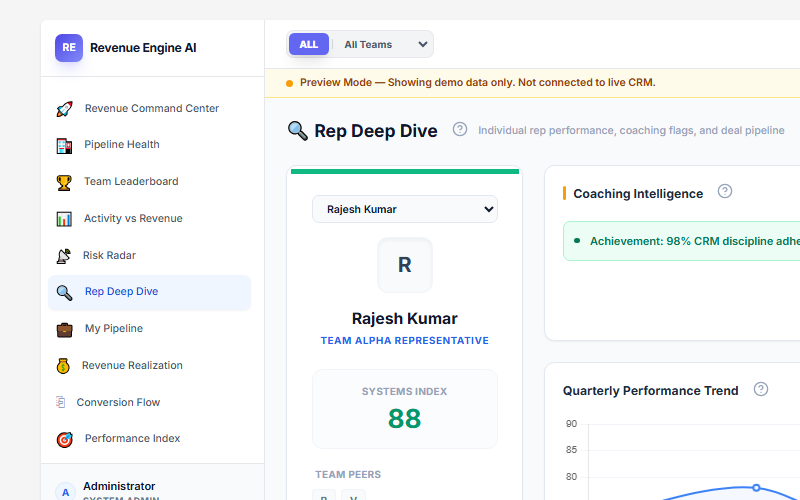
The Rep Deep Dive view gives you a complete performance profile for any individual rep:
- Performance Index score (0–100 composite)
- Win Rate and Revenue Attainment vs target
- All open deals with their stages, values, close dates, and risk badges
- Activity count and last-touch history
- Stalled deal flags and silence badges for each deal
To switch between reps, use the team switcher dropdown at the top of the view. The entire profile updates in seconds — no report to run, no export required.
Action Trigger: If a rep shows a rose badge (21+ days silent) on more than one deal in the same week, escalate this to a formal pipeline review — not just a 1:1 coaching conversation.
How to Set This Up in Your SuiteCRM Instance
Revenue Engine AI installs via SuiteCRM’s standard Module Loader in under five minutes. After installation:
- Navigate to the dashboard via your profile menu (top-right corner → Revenue Engine AI)
- Complete the 6-step onboarding wizard — this takes approximately 3 minutes
- Set your Quarterly Revenue Target in Settings → System Configuration
- Confirm your Team Mapping (Security Groups, Department, or ACL Role)
- Open the Risk Radar view — your team’s stall flags are already populated from your live CRM data
For the silence badges to appear correctly, ensure that Calls and Meetings in SuiteCRM are marked “Related To” the relevant Opportunity record. This is standard SuiteCRM practice, but if your team hasn’t been doing this consistently, the silence badges will reflect the data as it is.
Start Seeing Stalls Before They Become Losses
Revenue Engine AI is available on the SuiteCRM Marketplace and at zybroz.com. Compatible with SuiteCRM 7.12, 7.14, and 7.15. Requires PHP 7.4+.
The next stalled deal that dies quietly in your pipeline is likely already there. Revenue Engine AI makes sure you see it — while there is still time to do something about it.
Questions? Reach the team at support@zybroz.com.