
What if your entire leadership team received a behaviorally-rich sales report every Monday at 8 AM – without anyone compiling it? No spreadsheet exports. No manual pull. No Monday morning report ritual. Just a complete behavioral briefing landing in every recipient’s inbox on a schedule you define. Automated sales email reports SuiteCRM teams have been asking for are now available in TeamPulse v0.9.9, and this guide covers setup from start to delivery confirmation.
What the Scheduled Email Contains
Each scheduled report is a complete behavioral briefing assembled at send time from live CRM data. Recipients receive:
- AI summary or InsightEngine verdict – a natural-language interpretation of the team’s behavioral health for the reporting period
- Discipline ranking table – every rep sorted by their current Discipline Score, with score band labels (Exceptional / Standard / Needs Coaching / Critical)
- Key coaching signals – the specific behavioral flags that TeamPulse has detected across the team, ranked by severity
- Hygiene risk count – the number of deals flagged as stale or lacking recent meaningful activity
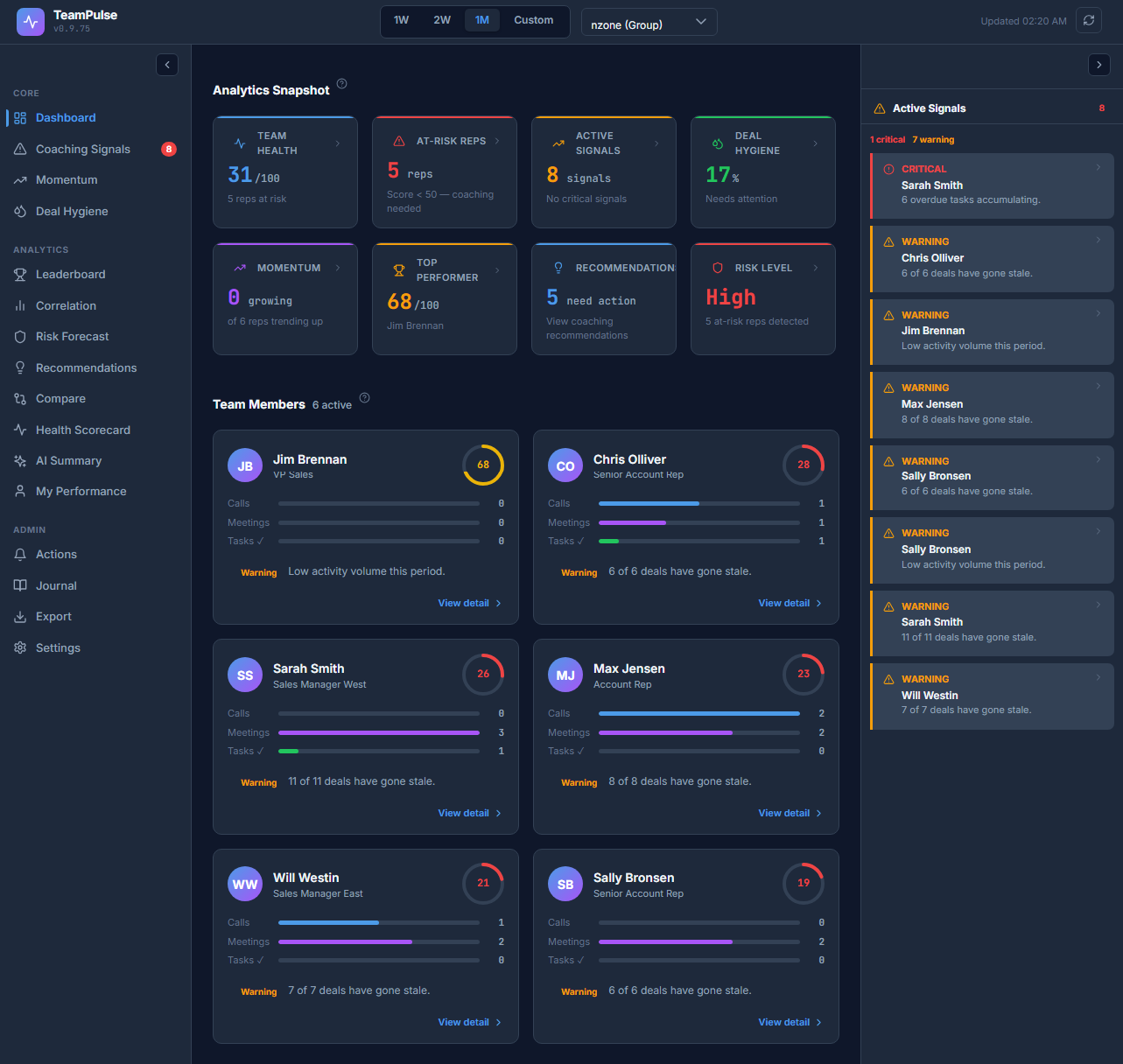
This is not a raw data export. It is a pre-interpreted briefing – the same behavioral intelligence visible in the TeamPulse dashboard, formatted for email consumption by stakeholders who may not log into the extension daily.
The Multi-Schedule System in v0.9.9
TeamPulse v0.9.9 supports up to 10 named, independent schedules running simultaneously in the same instance. Each schedule has its own name, frequency, send time, and recipient list. They operate independently – one schedule firing does not affect another.
Multiple schedules solve a real organisational problem. A weekly behavioral briefing for frontline managers carries different content urgency and a different audience than a monthly executive digest. A bi-weekly VP-level review sits between them. Three audiences, three cadences, three schedules – all managed from one Settings tab.
Example use cases:
- Weekly Manager Briefing – every Monday at 8 AM to all team managers; covers weekly behavioral scores and at-risk rep flags
- Monthly Executive Audit – first day of each month to leadership; covers Discipline Score trends, hygiene risk totals, and top coaching signals
- Bi-Weekly VP Review – alternating Fridays to the VP of Sales; covers cross-team comparisons and momentum direction
Step-by-Step: Setting Up a Schedule
Admin role is required to create or edit schedules. Managers can view the Schedule tab but cannot add or modify schedules.
Step 1: Open the Schedule Tab
Navigate to Settings ? Schedule tab inside TeamPulse. The tab lists all existing schedules with their current enabled/disabled status, frequency, next send date, and last delivery result.
Step 2: Add a New Schedule
Click + Add Schedule. A form panel opens with the following fields:
- Name – a label for this schedule (e.g., “Weekly Manager Briefing”). Displayed in the schedule list and the Delivery Log.
- Frequency – Weekly, Bi-weekly, or Monthly.
- Send Day – for Weekly and Bi-weekly, this is the day of the week (Monday through Sunday). For Monthly, this is the day of the month (1-28).
- UTC Hour – the hour in UTC at which the email fires. Convert your local time to UTC before entering this value.
- Recipients – a comma-separated list of email addresses. These can be any valid email addresses – they do not need to be SuiteCRM users.
Step 3: Enable and Save
Toggle Enabled ? ON before saving if you want the schedule to be active immediately. A schedule saved with Enabled set to OFF is stored but will not fire until toggled on. Click Save.
Step 4: Send a Test Email
With the schedule saved, click Send Test on that schedule’s row. TeamPulse generates a report using current CRM data and sends it to all recipients in the schedule’s recipient list. The Delivery Log records the test send within 60 seconds of the button click.
Check the Delivery Log panel immediately after clicking Send Test to confirm the entry shows status: test-sent and the correct recipient_count. If the entry shows status: failed, the error message column identifies the cause.
Reading the Delivery Log
The Delivery Log panel sits below the schedule list on the Schedule tab. It records every send event – scheduled fires and manual test sends – with the following fields:
| Field | What it shows |
|---|---|
sent_at |
UTC timestamp of the send attempt |
status |
sent, failed, or test-sent |
recipient_count |
Number of addresses the email was dispatched to |
error |
Error message if status is failed; blank otherwise |
The log is paginated at 50 entries per page. Use Download CSV to export the full log for audit purposes or to share with a SuiteCRM administrator troubleshooting mail delivery. Use Clear Log to delete all log entries – this is irreversible.
Troubleshooting Delivery Failures
If a scheduled report shows status: failed in the Delivery Log, work through the following checks in order.
SuiteCRM Cron Is Not Running
TeamPulse’s scheduler runs inside SuiteCRM’s cron job infrastructure. If SuiteCRM’s cron is not active, no scheduled emails fire. Confirm with your SuiteCRM administrator that the cron job is configured and running. TeamPulse’s cron checks for due schedules every 30 minutes.
Invalid Recipient Addresses
An invalid or malformed email address in the recipient list causes the send to fail for all recipients on that schedule. Review the Recipients field for typos, missing domain names, or extra spaces between addresses.
Demo Mode Is Active
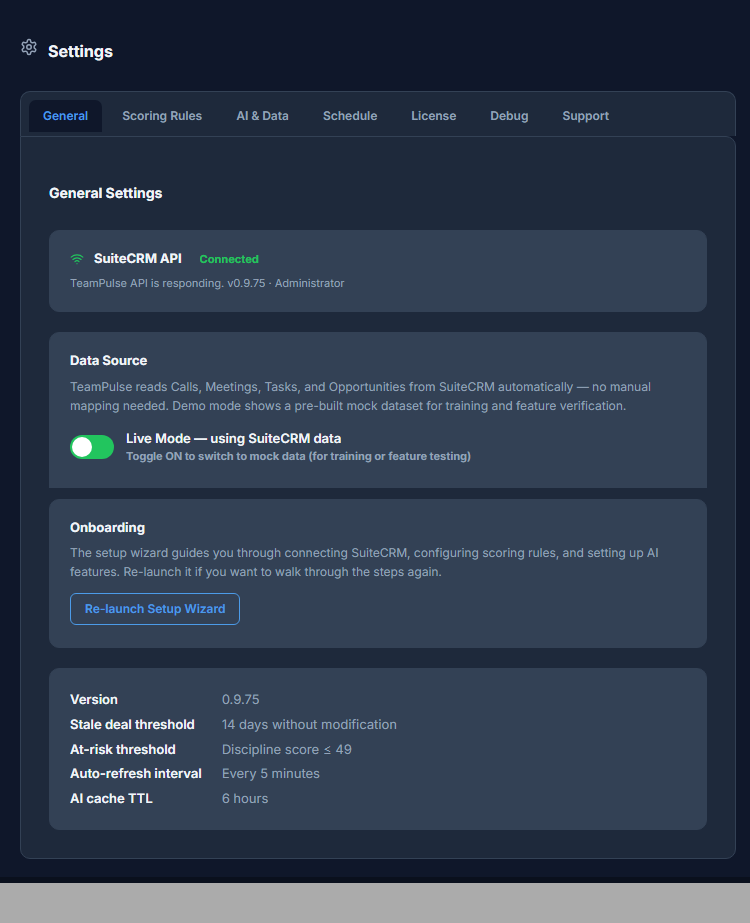
Scheduled emails are blocked when TeamPulse is running in Demo Mode. This is by design – Demo Mode uses fictional data, and firing scheduled emails from fictional data to real recipients creates confusion. Switch to Live Mode in Settings ? General before expecting scheduled reports to fire.
Error Message in Delivery Log
The error field in the Delivery Log contains the specific failure reason returned by SuiteCRM’s mail stack. Common messages include SMTP authentication failures, connection timeouts, and missing mail configuration. These point to SuiteCRM server-level mail settings, not TeamPulse configuration.
Multiple Schedule Use Cases by Team Structure
The 10-schedule limit gives large sales organisations room to build a layered reporting cadence without overlap or manual coordination.
Frontline Managers
A weekly schedule targeting frontline managers fires every Monday morning before the start of business. Managers arrive at their first 1-on-1 with a current behavioral briefing already in their inbox – at-risk rep flags, hygiene risk count, and key coaching signals already identified.
Executive Leadership
A monthly schedule targeting the VP of Sales and Sales Operations fires on the first of each month. This audience does not need weekly cadence – they need a high-level trend view on monthly boundaries, which the monthly frequency delivers.
Mid-Tier Review
A bi-weekly schedule targeting regional directors or senior managers sits between the weekly manager layer and the monthly executive layer. It provides mid-cycle visibility without the noise of a weekly cadence at the leadership level.
Admin-Only Schedule Control
The ability to create, edit, enable, or disable schedules is restricted to Admin-role users. This is not configurable – it is enforced by TeamPulse’s RBAC system on every schedule-related API call. Manager-role users can see the Schedule tab and view existing schedules, but the Add Schedule button and toggle controls are not available to them.
This restriction exists because schedule recipients can include any email address – including addresses outside the organisation. Admin-only control prevents a manager from accidentally (or deliberately) routing behavioral sales data to unintended recipients.
Want to understand the full executive reporting architecture in TeamPulse? Read the Executive Reporting documentation for a complete breakdown of email content, schedule management, and delivery audit workflows.